A manual test is one that the program doesn’t score: you do. The patient fills it in on paper or as a PDF, and you only enter the final score. It works for any test, however unusual its scoring is.
In short
Open the tests icon in the blue bar, click New test, give it a name, choose the Manual mode, the direction and the range, and click Create test. A manual test doesn’t ask for questions or a solved example: only those details.
Open the test creation form
Click the tests icon in the blue bar at the top and, under New test, start filling it in. If you haven’t turned tests on yet, follow the guide Create your automatic tests.
Give it a name and choose the Manual mode
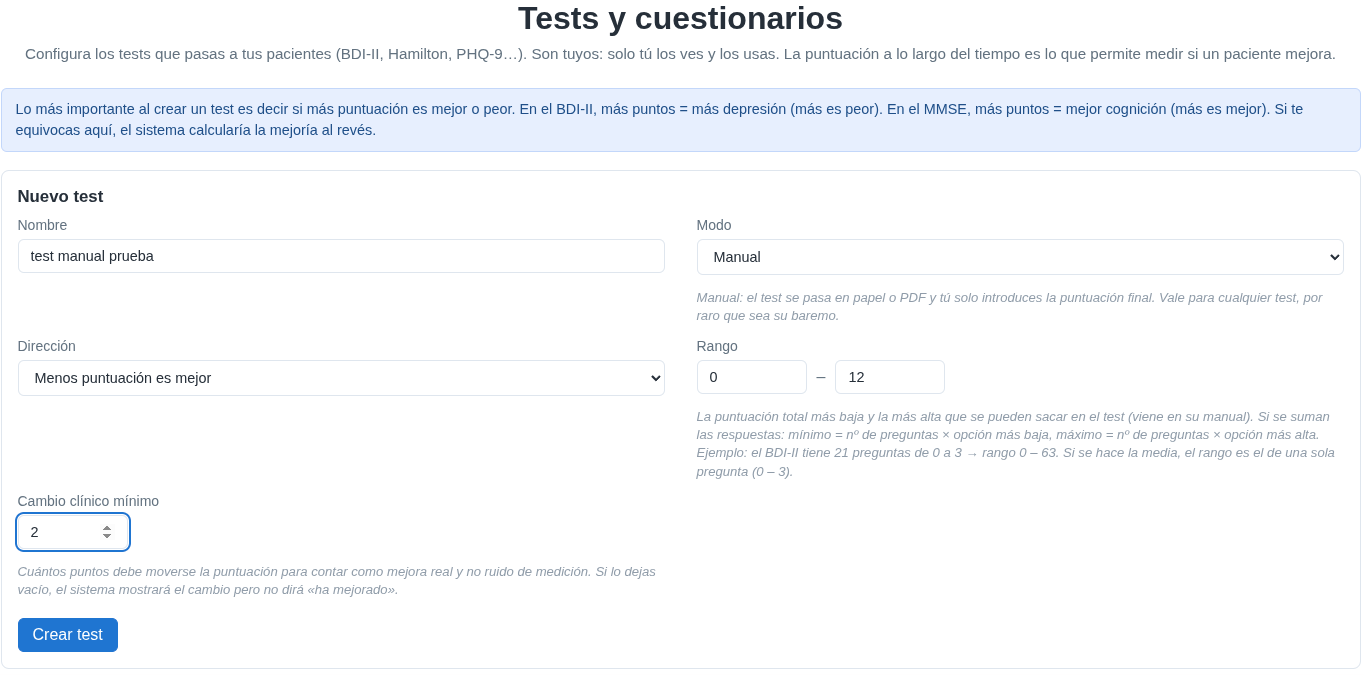
Type the name of the test, for example “manual test trial”.
Under Mode, choose Manual. The screen describes it like this: the test is given on paper or as a PDF, and you only enter the final score.
Choose the direction and the range
The direction says whether, in that test, a higher score means worse or better: Lower score is better or Higher score is better. Ask yourself whether the number goes up when the person is worse. For example, in the BDI-II more points means more depression, so a lower score is better.
The range is the lowest and the highest total score the test can give. For example, 0 to 12. If the test has a different scoring, use the numbers in its manual.
Minimum clinical change (optional)
Here you write how many points the score has to change for it to count as a real improvement and not as normal variation in the measurement. If you leave it empty, the system shows how much it has changed, but it won’t say “has improved”.
Click Create test
When the details are right, click Create test. You’ll then see it in the Your tests list.
Now you have to activate it. In the Your tests list, click Activate on the test you’ve just created. Only active tests can be given to a patient.
To give the test to a patient, follow the guide Give a manual test to your patient.
Editing or deleting a test you've already used
As with automatic tests: if it already has recorded scores, it can’t be edited or deleted. It is archived, so your patients’ history isn’t changed.