Tests are questionnaires you give your patients, such as the BDI-II, Hamilton or PHQ-9, to see with numbers whether they are improving. You download the test from its official website and type it in here yourself. It is then saved in each patient’s record. Tests are yours: only you can see and use them.
In short
Turn on tests in Modules. Then create your test: give it a name, choose the mode, the direction, the range and how it is scored, write the questions and add a solved example. The test is saved as a draft: review it and activate it.
Turn on tests in Modules
Go to Modules, click Tests and questionnaires and tick Activate tests.
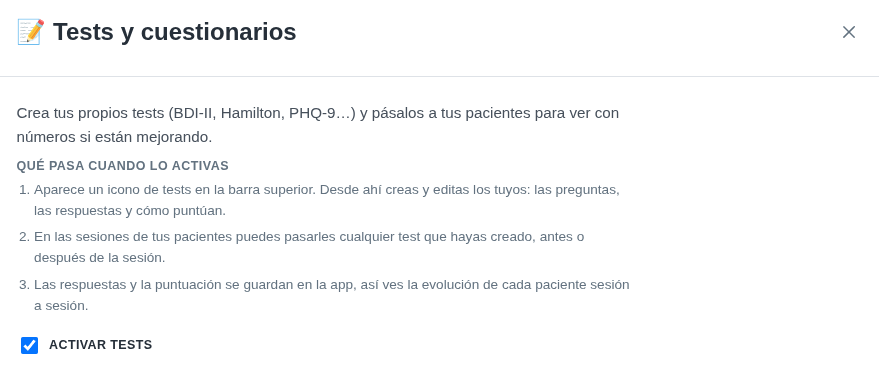
Once it’s on, a new tests icon appears in the blue bar at the top, the actions bar. That’s where you create and edit your tests.

Give it a name and choose the mode
Type the name of the test, for example “BDI-II”.
Then choose the mode of scoring:
- Automatic: you define the questions and their options, and the program adds up the score by itself.
- Manual: you enter the score yourself, by hand, each time. We explain it in the guide Create your manual test.
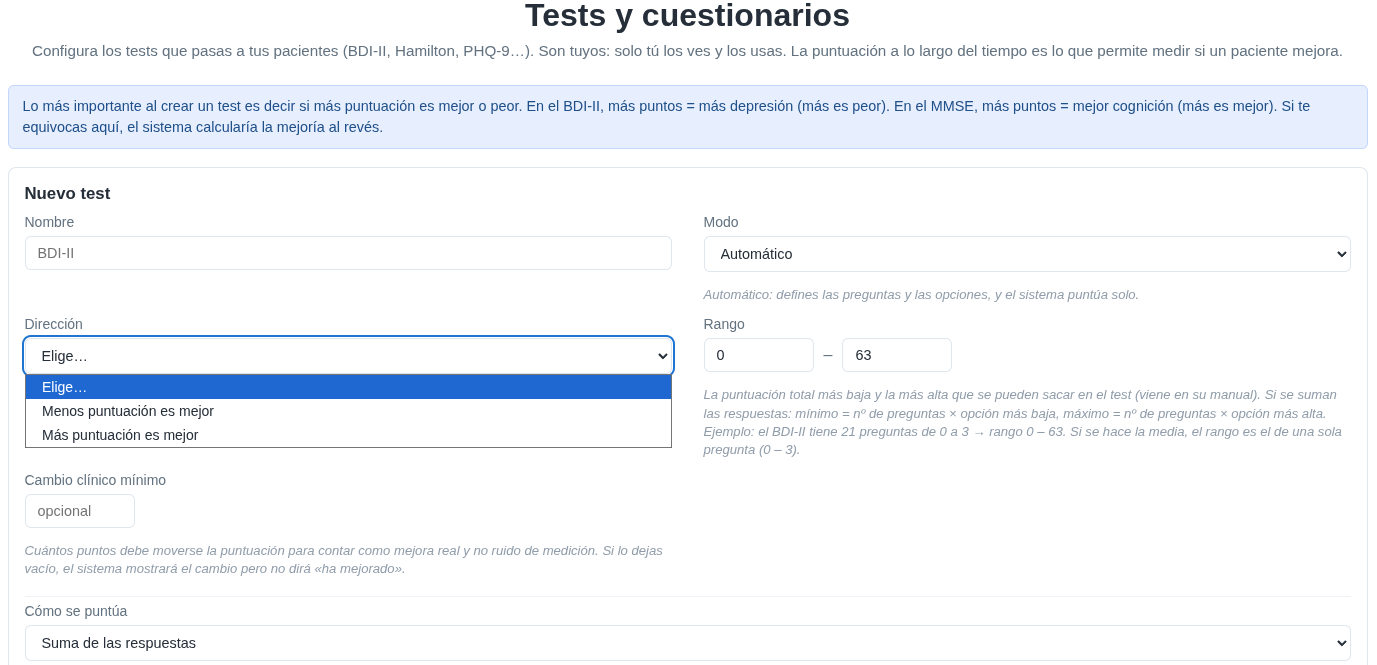
Choose the direction: is a higher score better or worse?
The direction says whether, in that test, a higher score means the patient is worse or better. Ask yourself: does the number go up when the person is worse?
- Lower score is better: the number goes down when the patient improves. For example, in the BDI-II more points mean more depression.
- Higher score is better: the number goes up when the patient improves. For example, in the MMSE more points mean better cognition.
If you choose wrongly, the system will say the patient is getting worse when they are actually improving. So check this carefully.
Set the range: the lowest and the highest score
The range is the two numbers between which the total score can fall: the lowest and the highest that can be reached.
To work it out, think like this: if the person always picks the lowest option, they reach the lowest number in the range. If they always pick the highest option, they reach the highest number.
Example with the BDI-II: it has 21 questions and each one goes from 0 to 3. The range is 0 to 63, because 21 times 3 is 63. If you use the average instead of the sum, the range is that of a single question: 0 to 3.
Minimum clinical change (optional)
Here you write how many points the score has to change for it to count as a real improvement and not as normal variation in the measurement.
If you leave it empty, the system shows how much the score has changed, but it won’t say “has improved”.
Choose how it is scored
Under How it is scored you choose one of two options:
- Sum of the answers: adds up all the patient’s answers.
- Average of the answers: takes the average of all their answers.
The range you set in the previous step must match the option you choose.
Write the questions and their answers
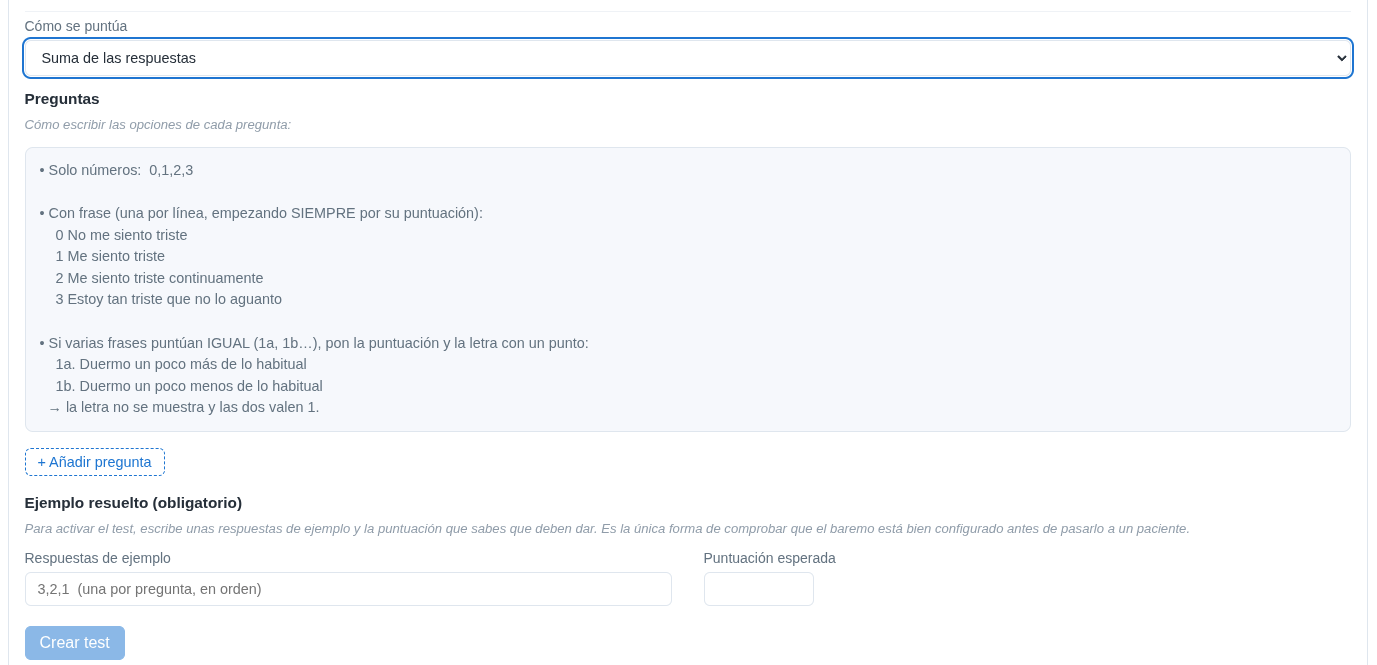
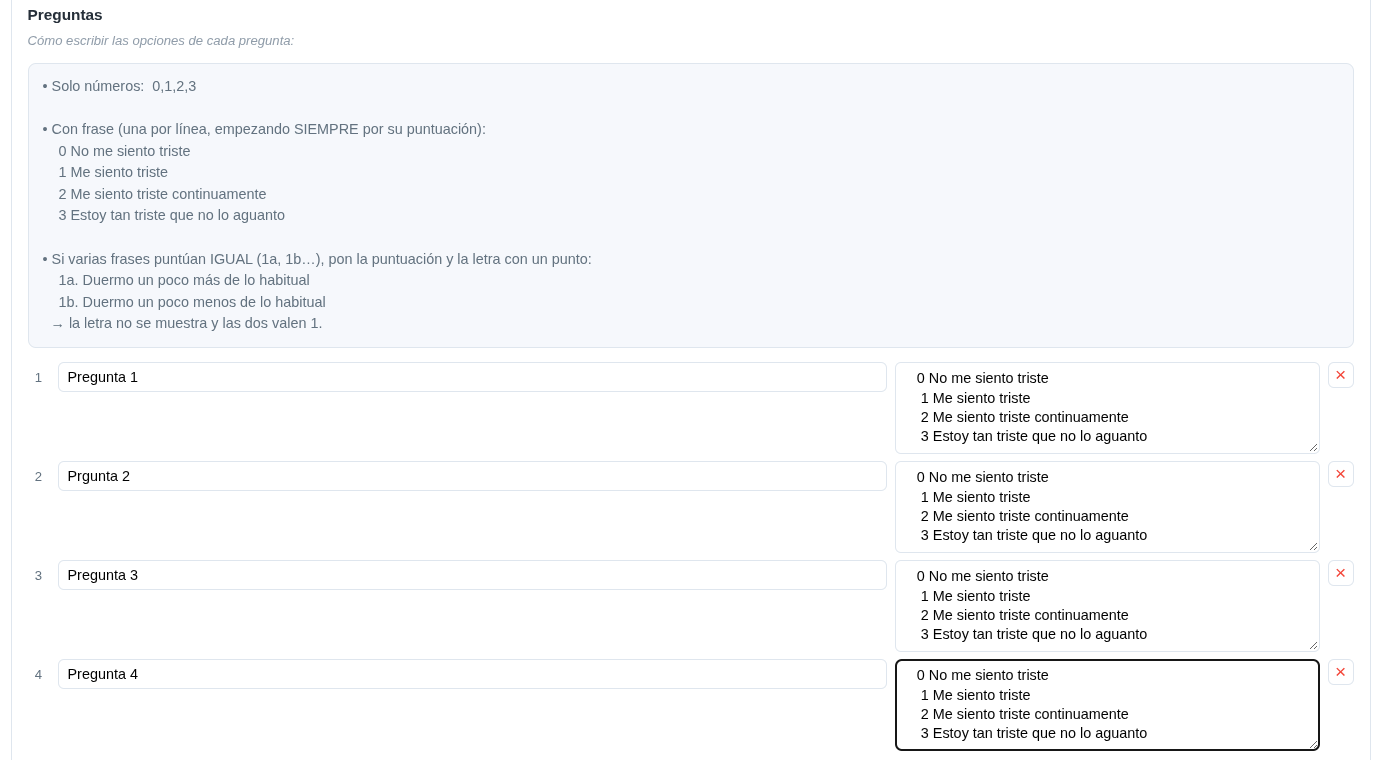
Click + Add question for each question in the test. Type the question and its answer options in one of two ways:
- Numbers only: write the scores separated by commas, for example
0,1,2,3. - With text: write one option per line, and always start with its score. For example:
0 I don't feel sad1 I feel sad2 I feel sad all the time3 I am so sad that I can't stand it
If several answers give the same score, add a letter after the number, followed by a full stop, for example 1a. and 1b.. The letter isn’t shown to the patient, and both count as 1.
Add a solved example to check it
At the end of the form is Solved example (required). Type some example answers, one per question and in order, for example 3,3,3,3, and the score you know they should give, for example 12.
It’s the only way to check that the scoring is set up correctly before you give the test to a patient. Then click Create test.

Review the draft and activate it
When you create it, the test is saved as a Draft. Check it in the Your tests list: here you can View, Edit, Activate or Delete each test.
When it’s ready, click Activate. Only active tests can be given to a patient.

Editing or deleting a test you've already used
If you’ve already recorded scores with a test, it can’t be edited or deleted: it is archived, so your patients’ history isn’t changed. If you really need to edit or delete it, you’ll first have to delete the records of that test that you’ve given to your patients.