A manual test is given from the session just like an automatic one, with one difference: the patient doesn’t fill it in on the app. You enter the score they got and, if you want, upload the corrected PDF of the test.
In short
In the patient’s session, under Give test, choose the manual test and the timing (before or after). The Score and Attach corrected PDF fields appear. Enter the score, upload the PDF if you have it and click Save test.
Choose the manual test in the session
Open the patient’s session and go to the Give test section, at the end of the record. Under Test, choose the manual test you created.
Choose the timing
Under Timing, choose Before or After the session, depending on when the patient did it.
Enter the score and upload the PDF
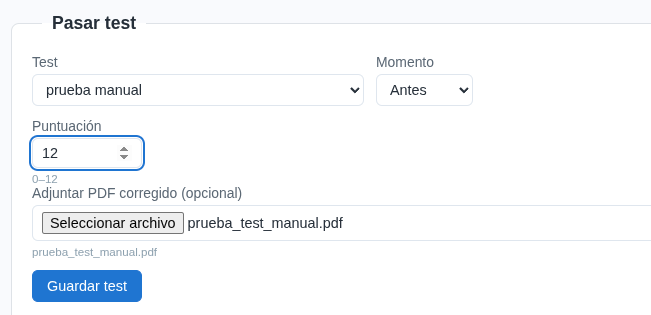
When you choose a manual test, instead of Start or Send by email, two fields appear:
- Score: type the score the patient got. It has to be within the range you set when you created the test, for example 0 to 12.
- Attach corrected PDF (optional): click Choose file and select the PDF of the test. That way the document is kept with the result.
Click Save test
Click Save test. If you don’t save it, the result isn’t recorded.
Check the result and the PDF
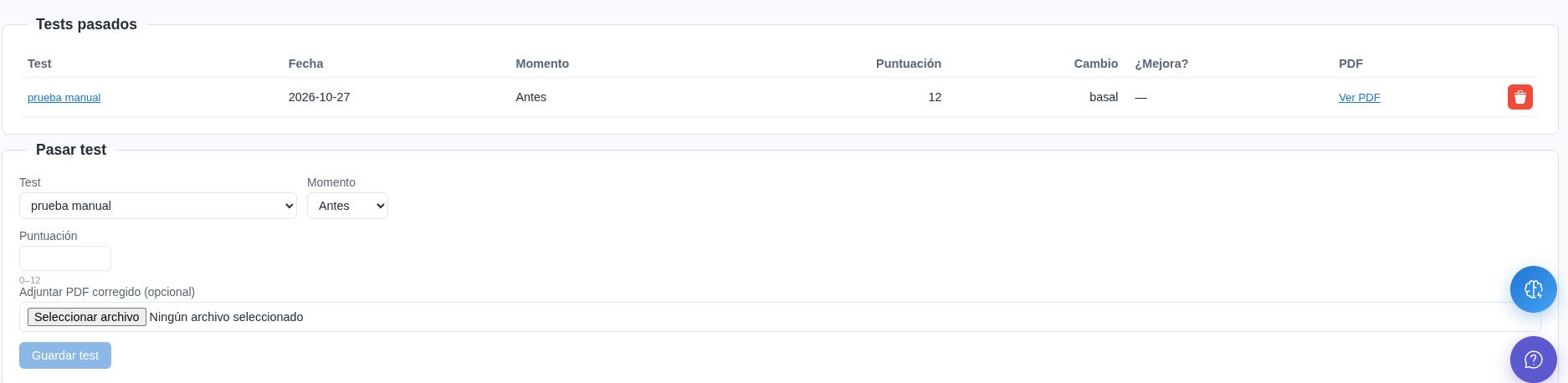
Once saved, the test appears in the session, in the Tests given table, with the date, the timing, the score, the change and whether it has improved. In the PDF column you can click View PDF to see or download it.
The first test you give is the baseline, as with the automatic ones.