How much has each patient paid you this month, and how much is still outstanding? Accounting shows it all on one screen: what you’ve collected, what’s pending and who you can remind to pay.
In short
In Accounting you see your income by week, month or quarter, with each appointment, its payment status and the method used. From there you can notify patients who still owe you, and the result is reflected on the dashboard.
Choose the period: week, month or quarter
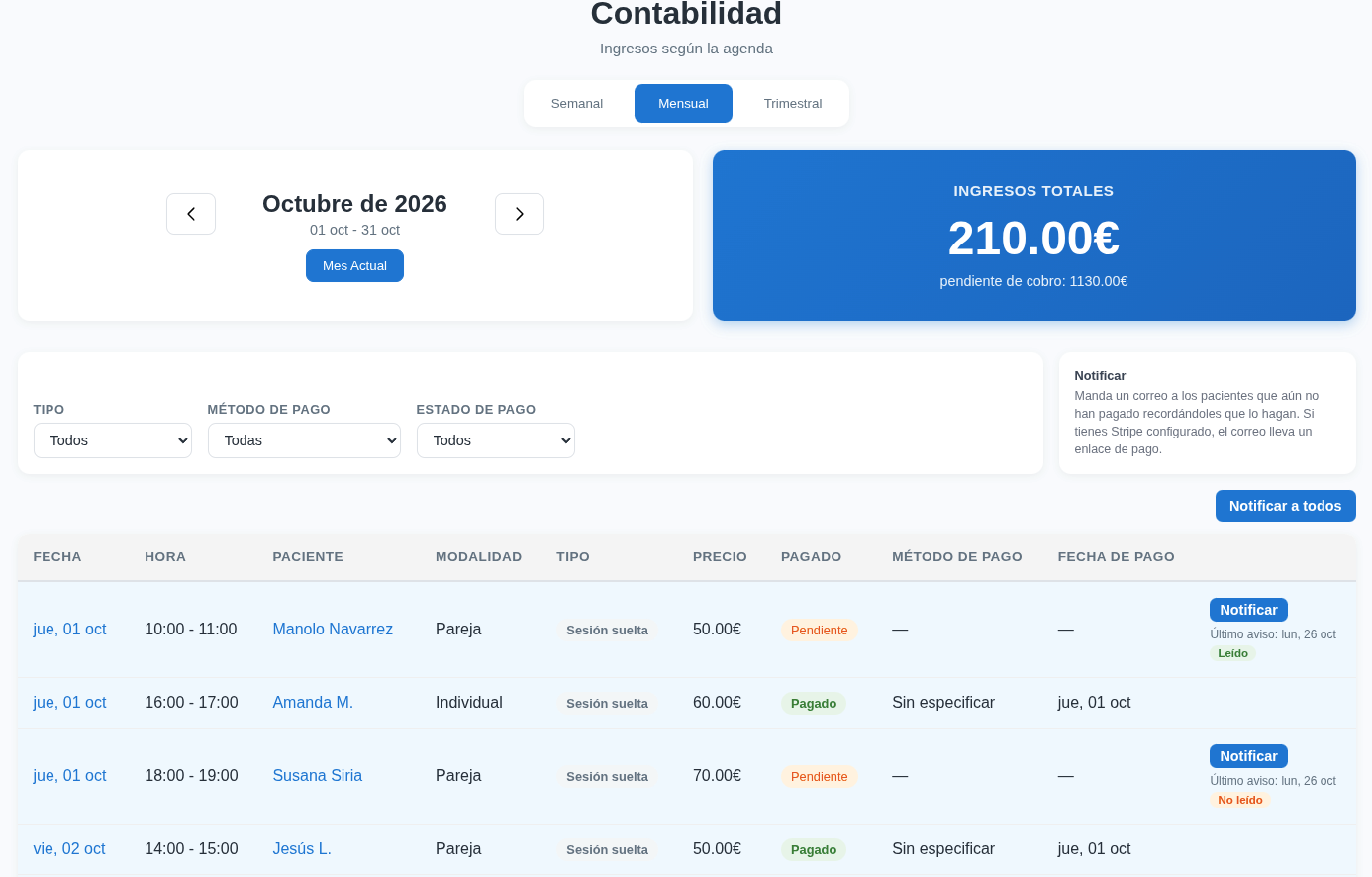
Go to Accounting and choose the view you need: Weekly, Monthly or Quarterly. The arrows change the period, and Current week or Current month brings you back to today.
This way you can see at a glance how much you’ve earned this week, this month or this quarter.
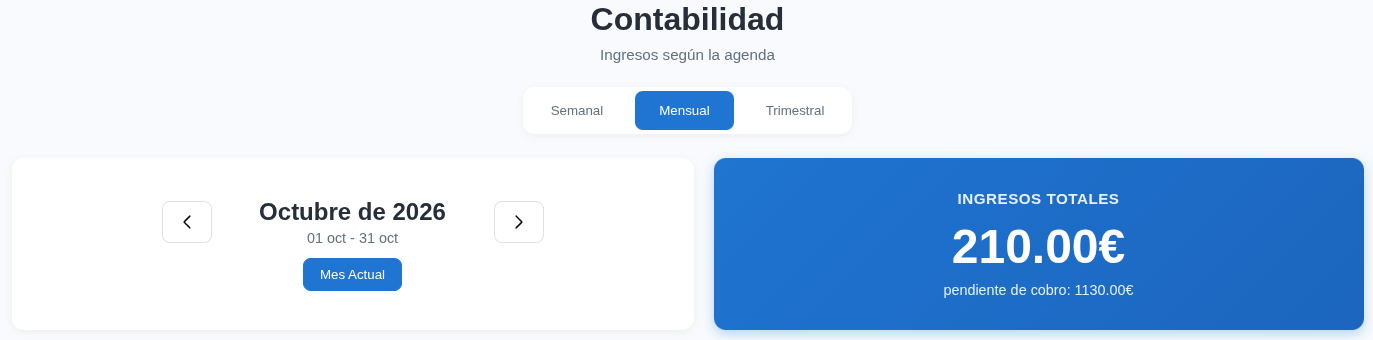
See your income and what's still outstanding
At the top, the blue box shows your total income for the period and, below it, the outstanding amount. You know straight away how much you’ve collected and how much people still owe you.
Check who has paid you
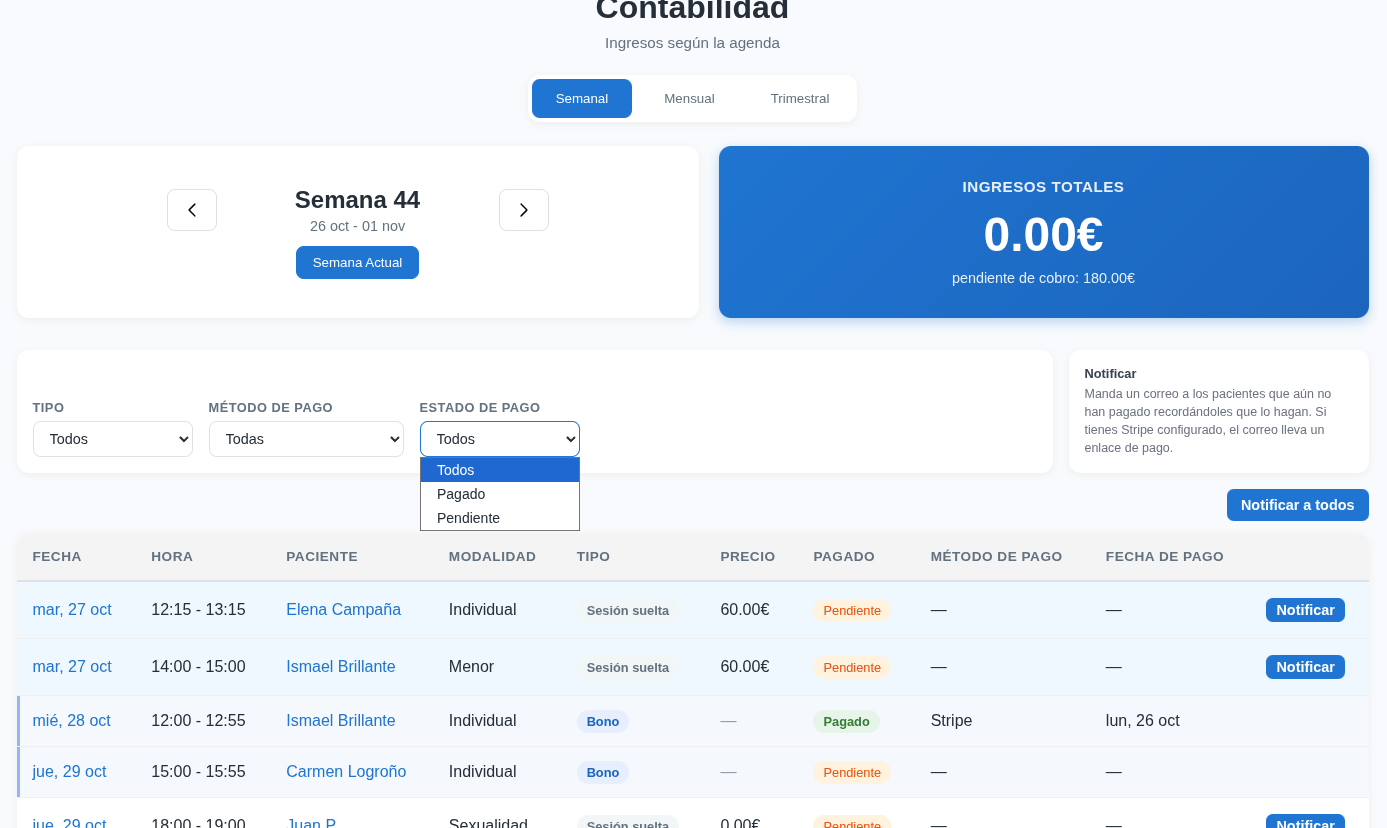
The table shows, appointment by appointment: the date, the patient, the modality, whether it’s a single session or a pack, the price, whether it’s paid or pending, the payment method and the payment date.
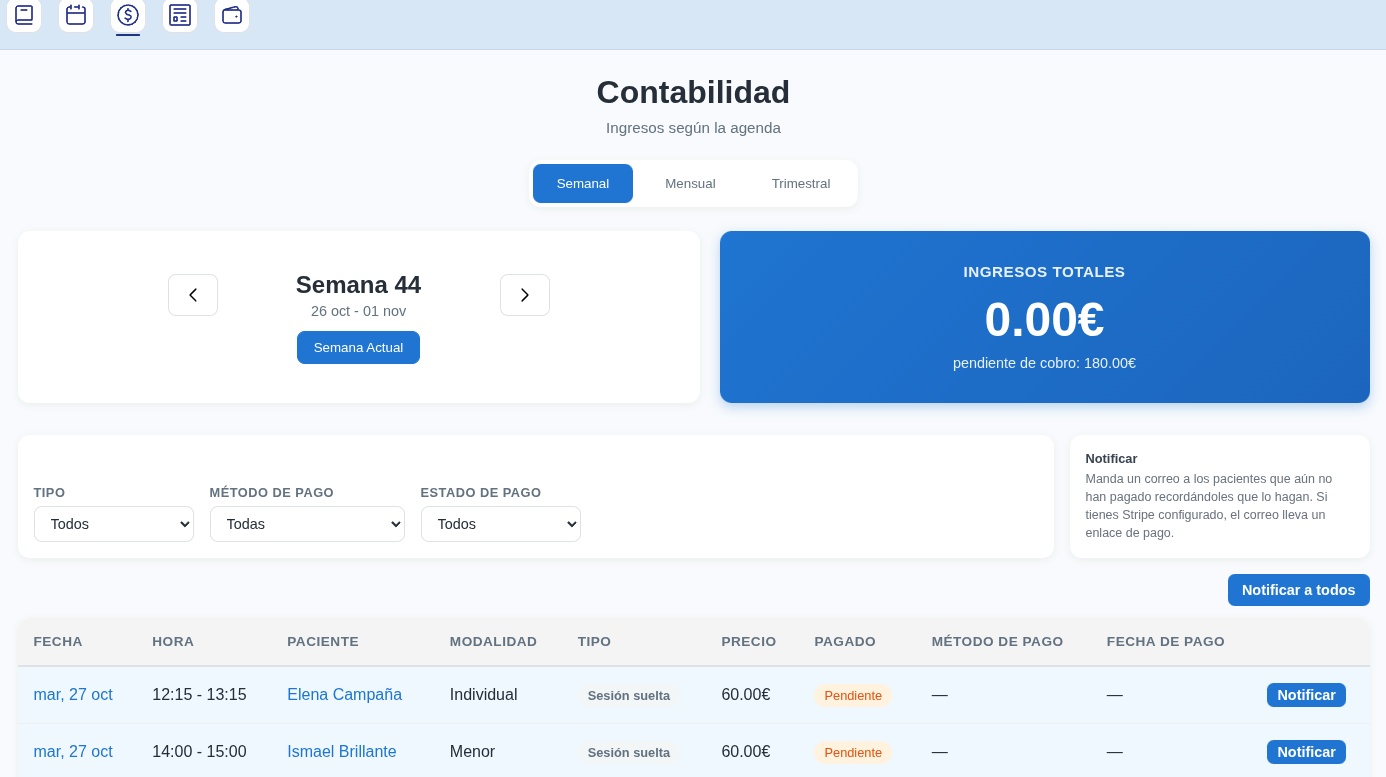
Use the filters to see only what matters. You can combine them.
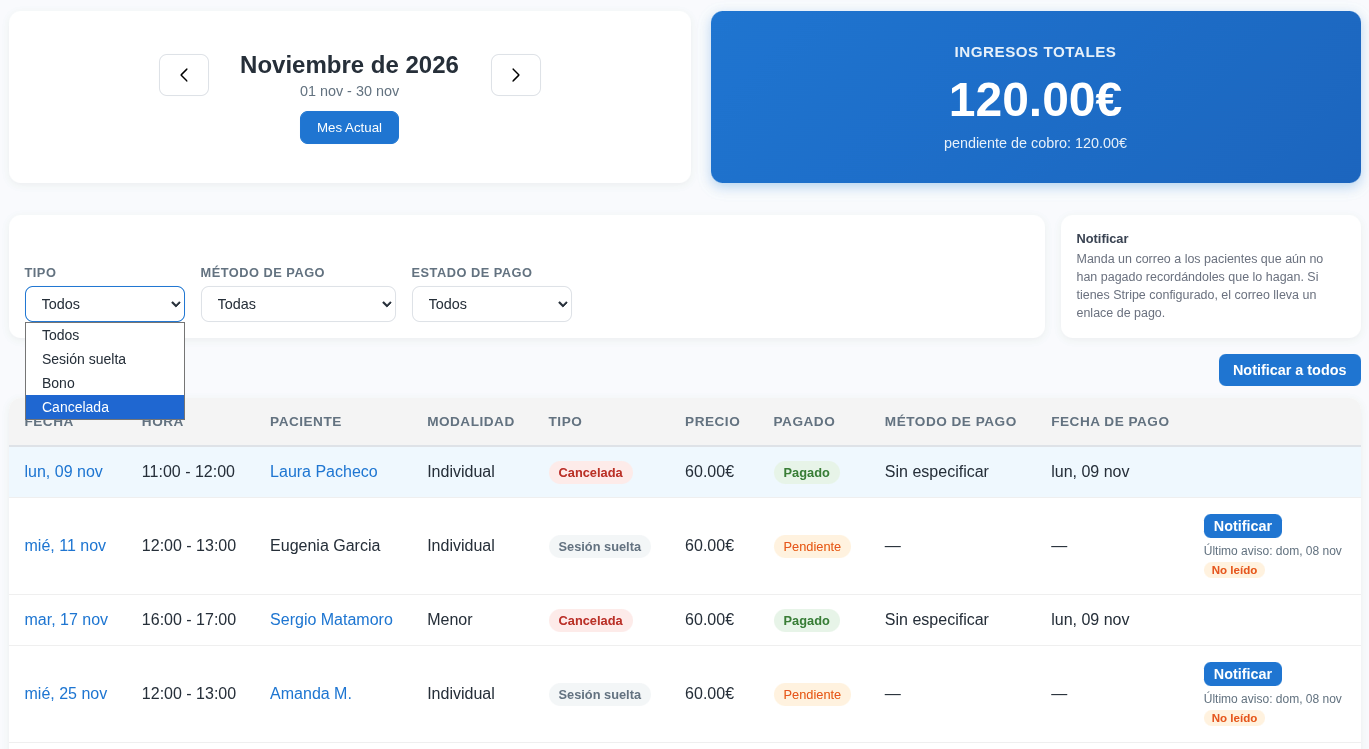
- Type: All, Single session, Pack or Cancelled. To see how much you’re owed only for packs, choose Pack. Cancelled shows the paid appointments you deleted from the calendar that still count towards your income.
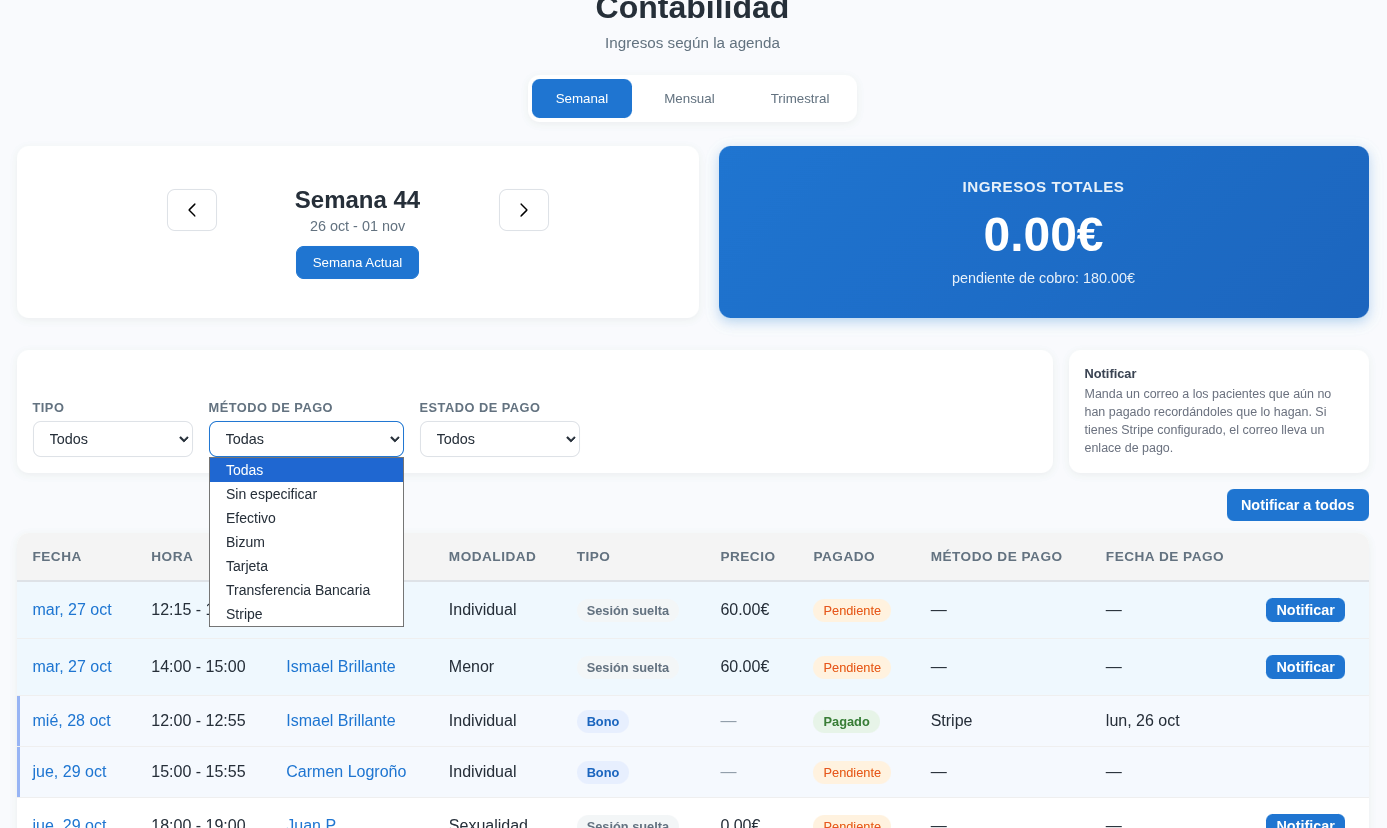
- Payment method: All, Not specified, Cash, Bizum, Card, Bank transfer or Stripe. It helps you see how each person pays you.
- Payment status: All, Paid or Pending. To see only who you still need to collect from, choose Pending.
An example
To see how much you’re owed for single sessions, choose Payment status: Pending and Type: Single session.
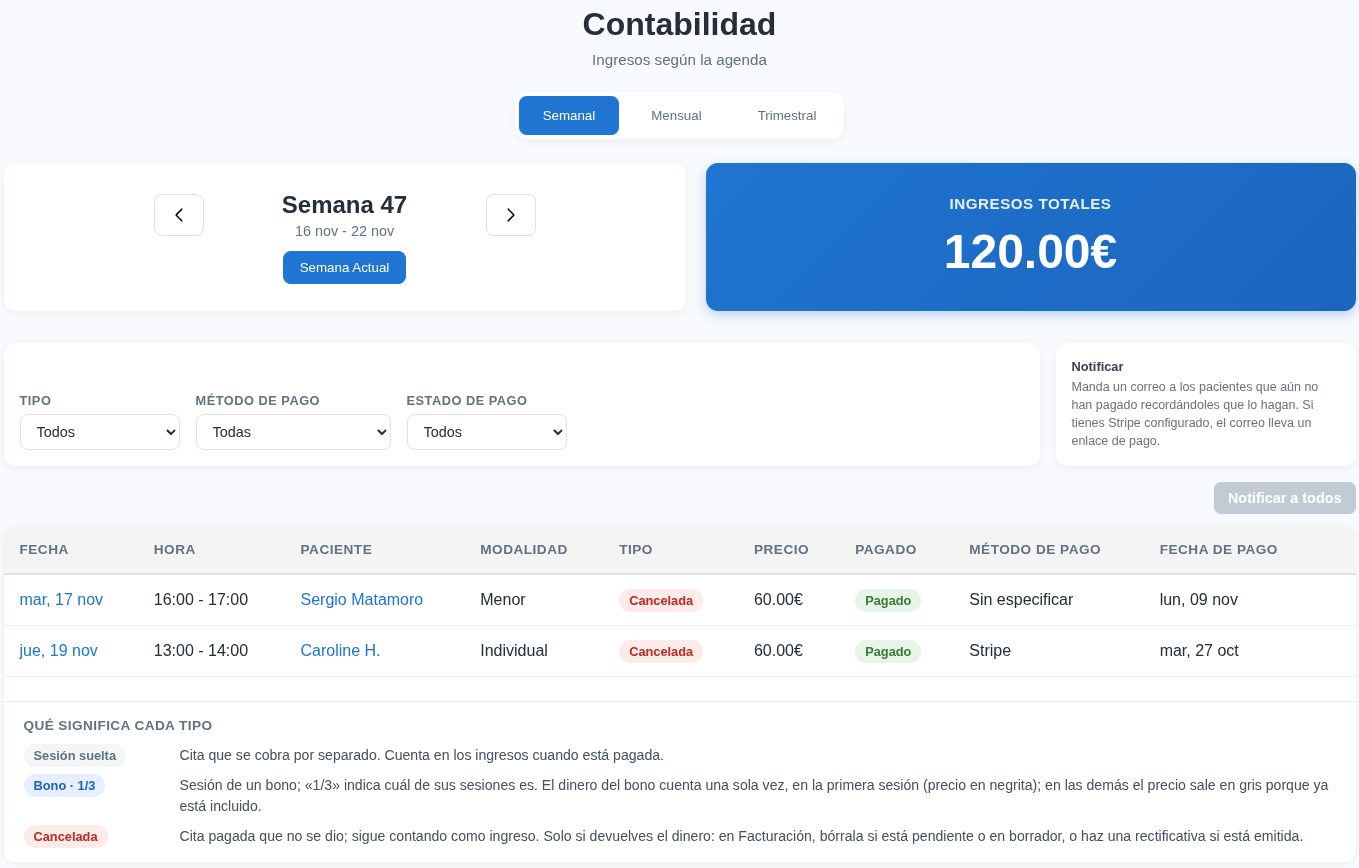
Below the table is the What each type means legend, which explains each label in the Type column:
- Single session: an appointment charged on its own. It counts as income once it’s paid.
- Pack · 1/3: a session from a pack; “1/3” tells you which session it is. The pack’s money counts only once, on the first session (price in bold); on the others the price is shown in grey because it’s already included.
- Cancelled: a paid appointment that didn’t take place. It keeps counting as income until it’s deleted in Invoicing or a corrective invoice is issued.
If you see a Cancelled appointment
It’s a paid appointment you deleted from the calendar. If you refund the money, delete the invoice (pending or draft) or issue a corrective invoice (issued); if you don’t refund it, issue the invoice. We explain it in the guide Delete a paid appointment.
Remind those who haven't paid yet
In the last column, click Notify next to the patient who owes you, or Notify all. The patient receives an email with a Stripe payment link. We explain it step by step in the guide Notify your patients from Accounting so they pay you.
Check it on the dashboard too
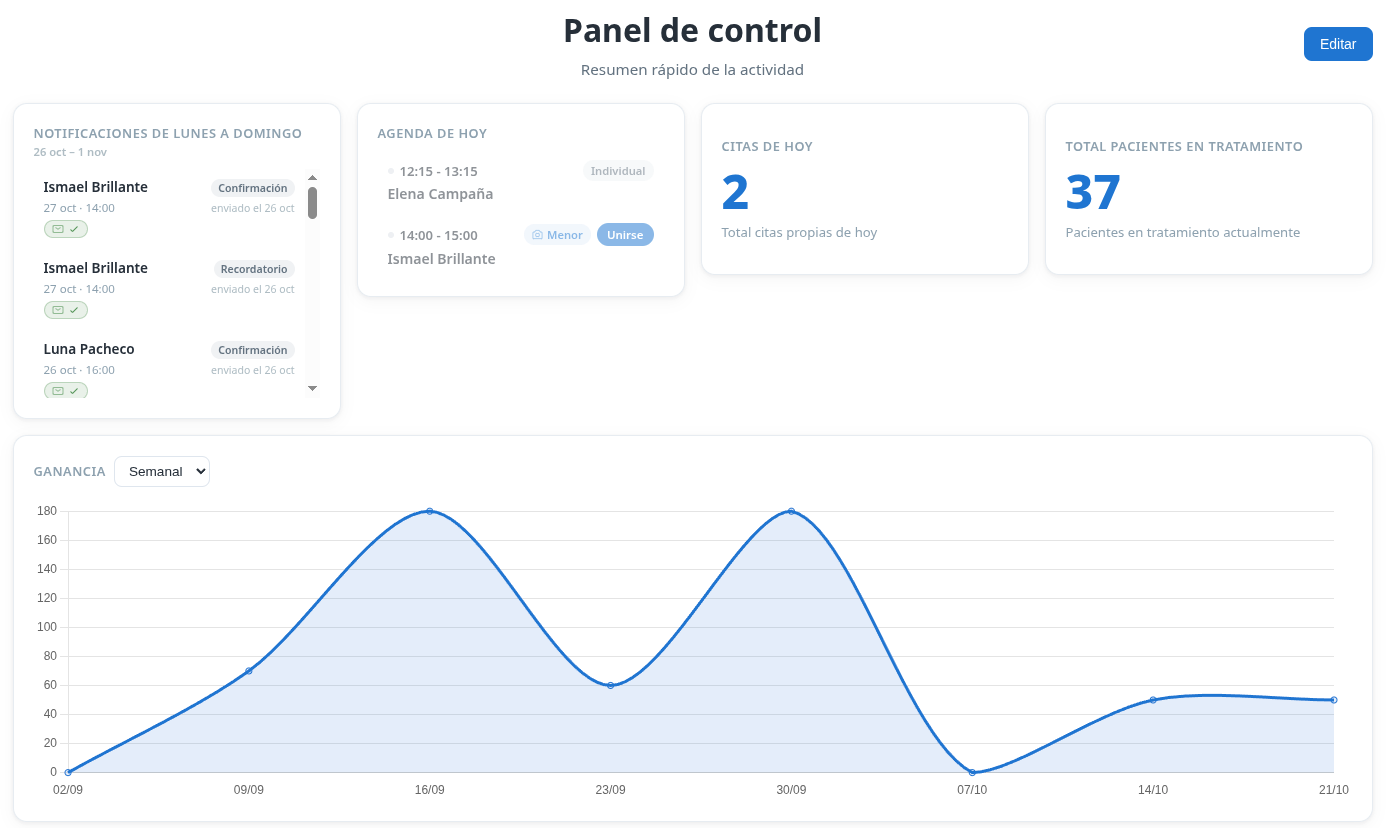
The dashboard has a Earnings box with your money in a chart. With the dropdown next to it you choose the chart’s period, for example Weekly. It shows the same figures as Accounting, so you can review your numbers without opening the section.
Compare months to see which is your best
If you combine Accounting with the Expenses module, you can compare your months: which ones bring in the most money and which the least, and decide with data when to invest in your business or in yourself.