You can delete an appointment from your calendar at any time, even if it’s already paid. The difference is that, if it’s paid (whatever the payment method), a warning appears before you delete it: that payment affects your invoicing, and we remind you what to do with it so your books stay straight.
In short
When you delete a paid appointment, the payment stays in Accounting and Invoicing with the Cancelled label. If you refund the money, delete the invoice (pending or draft) or issue a corrective invoice (issued). If you don’t refund it, issue the invoice. If the patient paid through Stripe, the money is refunded automatically when you delete the appointment.
Single session or pack session
What happens to the money depends on how the appointment was paid:
- Single session: the warning is shown. If the patient paid through Stripe, the money is refunded automatically when you delete it.
- Pack session: there’s nothing to refund. The session goes back to the patient’s pack so they can use it any other time.
Delete the appointment from its details
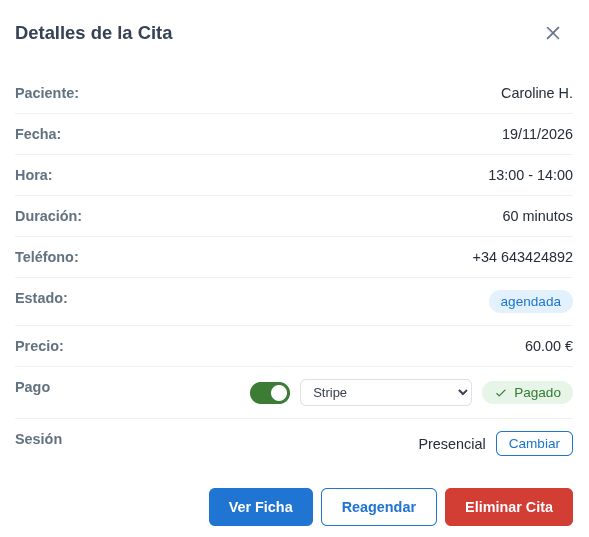
In the Calendar, click the appointment to open its Details and click Delete appointment.
Read the “This appointment is paid” warning
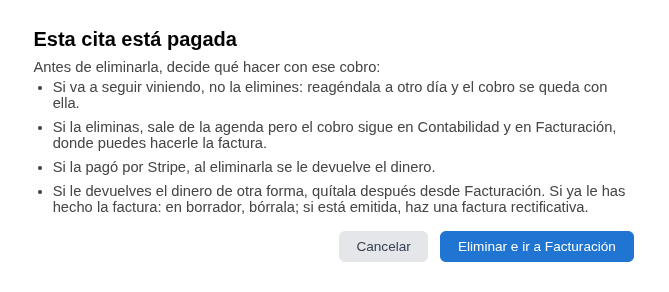
If the appointment is paid, the This appointment is paid window appears, helping you decide what to do with that payment:
- If the patient will keep coming, better not delete it: reschedule it to another day and the payment stays with it.
- If you delete it, the appointment leaves the calendar, but the payment stays in Accounting and Invoicing, where you can invoice it.
- If they paid through Stripe, the money is refunded when you delete it.
- If you refund them another way (cash, Bizum, bank transfer…), you’ll need to remove it afterwards from Invoicing.
The Delete and go to Invoicing button deletes the appointment and takes you straight to Invoicing. If you change your mind, click Cancel and the appointment stays as it was.
What you see in Invoicing
The deleted appointment stays in Invoices → From appointments, with the red Cancelled label under the patient’s name. What you can do depends on the status of its invoice:
- Pending: a bin icon appears so you can delete it.
- Draft: a bin icon appears so you can delete it.
- Issued: it can no longer be deleted. Issue a corrective invoice, as we explain in the guide Correct an issued invoice.
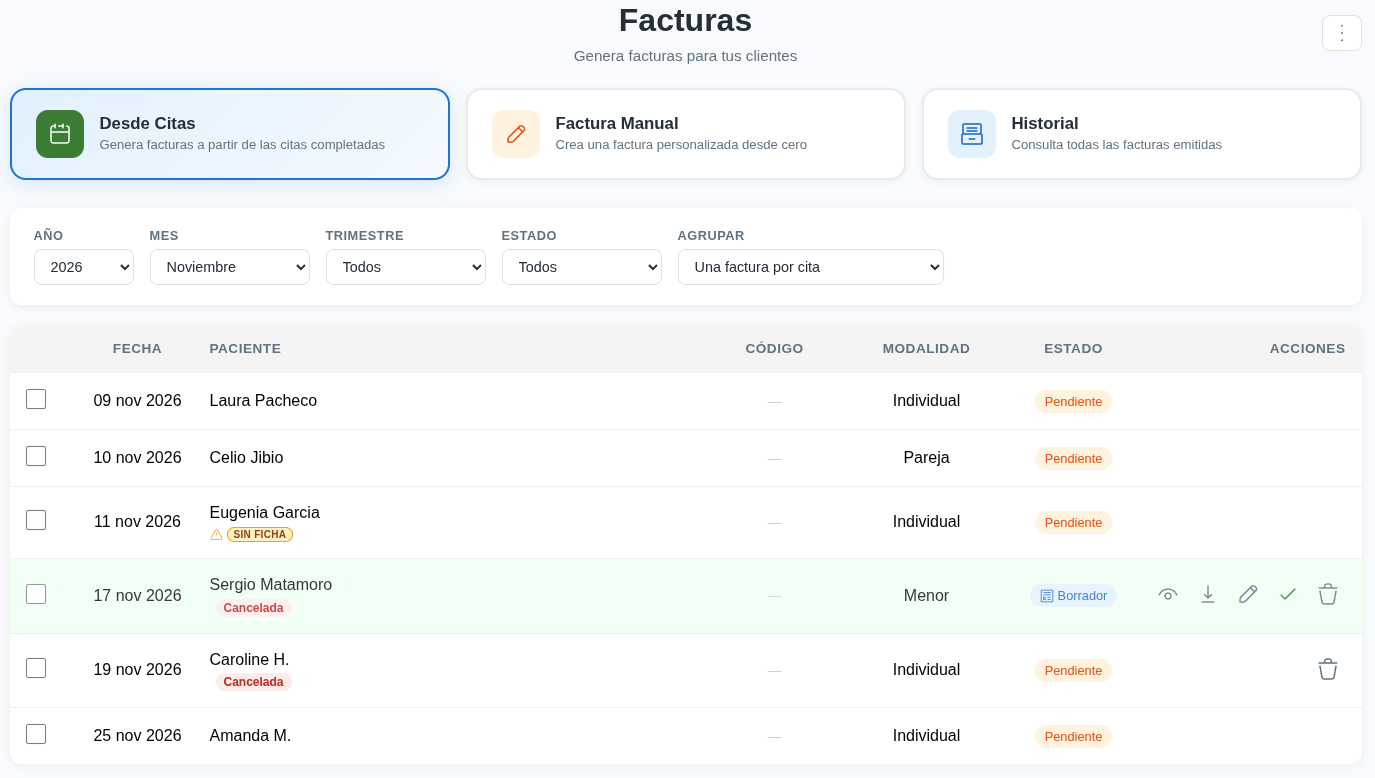
As long as the invoice isn’t issued, you can delete it and refund the patient. If you don’t refund the money, you must issue the invoice anyway, because that payment is still income.
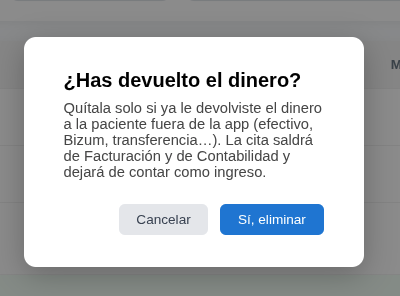
When you click the bin: “Have you refunded the money?”
Before it’s deleted, a reminder appears, Have you refunded the money?: delete it only if you’ve already refunded the patient outside the app. When you click Yes, delete, the appointment leaves Invoicing and Accounting and no longer counts as income.
What you see in Accounting
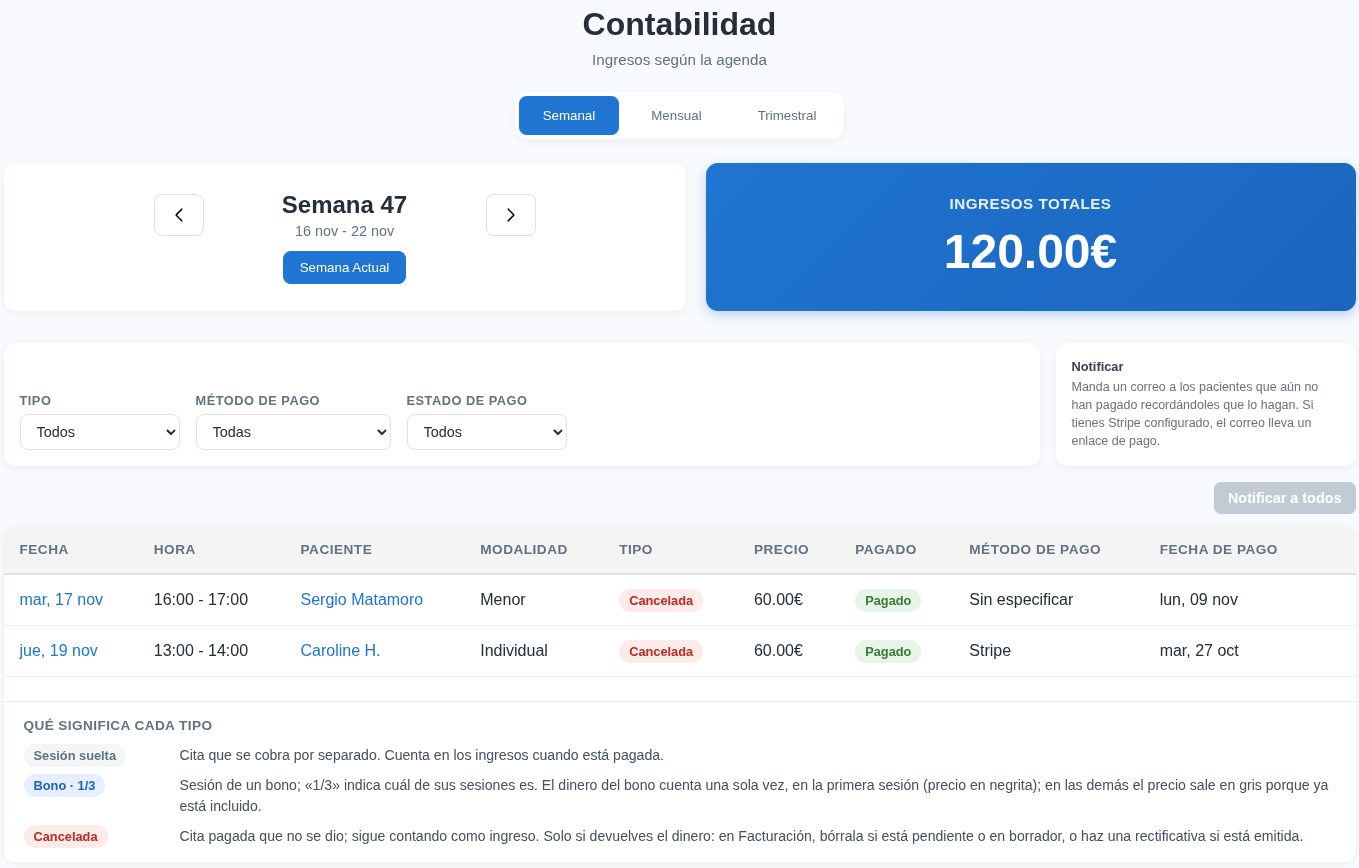
In Accounting, the deleted appointment shows the Cancelled type and keeps adding to your income until you delete it from Invoicing or issue the corrective invoice.
Below the table is the What each type means legend, which explains it along with the other labels. We cover it in the guide Know who pays you, how much and when.
Remember
If you refund the money, delete the invoice (pending or draft) or issue a corrective invoice (issued). If you don’t refund it, issue the invoice. Until then, the cancelled appointment keeps adding to your income.
Where to see Stripe refunds
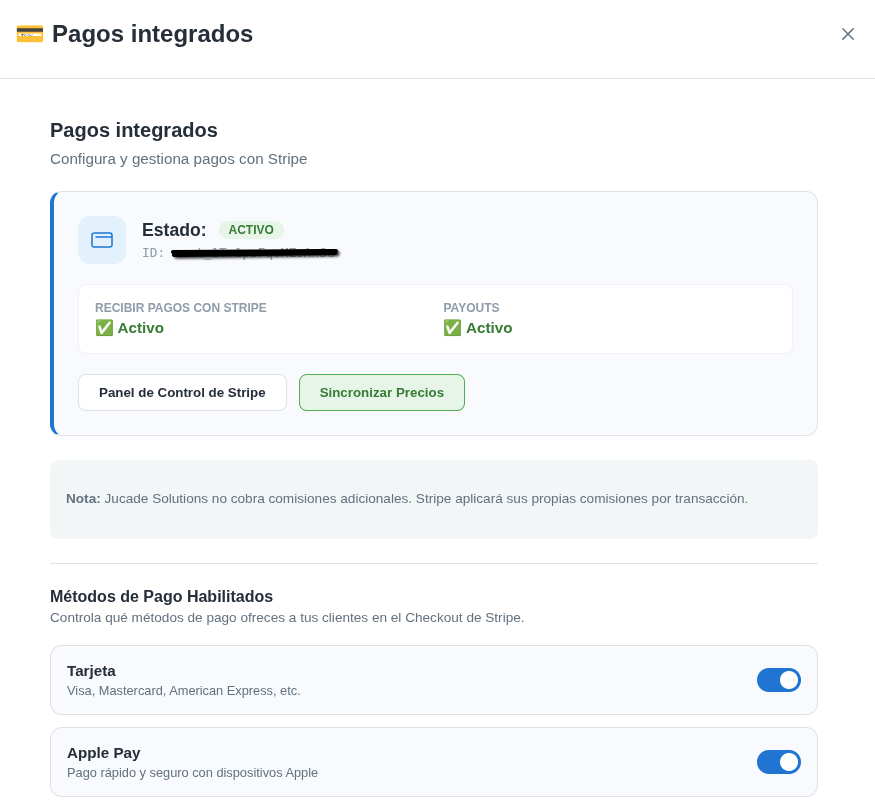
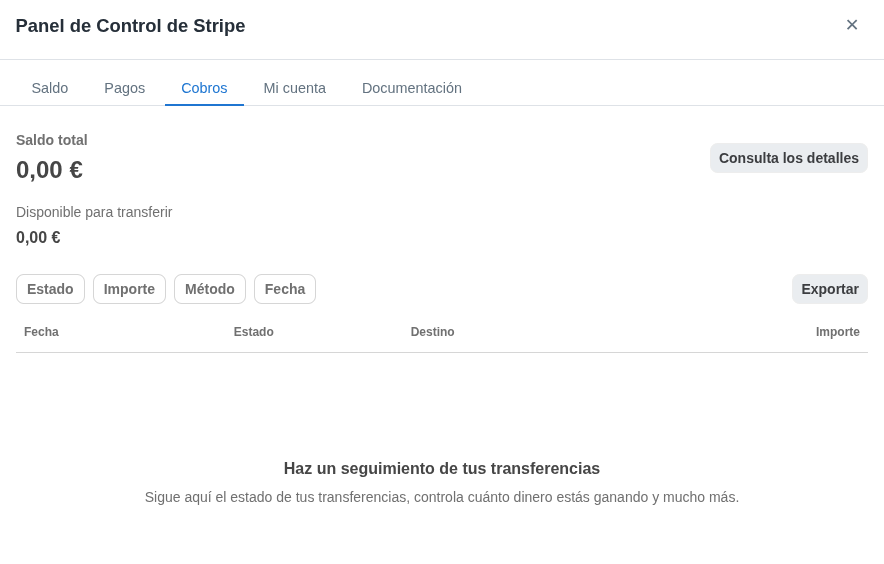
If the appointment was paid through Stripe and the money has been refunded, you can check the refund in dashboard → Integrated payments (Stripe) → Stripe Dashboard. There you’ll see refunds along with your balance, payments and payouts.