An issued invoice isn’t deleted or edited. If there’s a mistake, you correct it with a corrective invoice (also called a credit note): a document that cancels the original and stays on record next to it.
Only issued invoices can be corrected
To correct an invoice, it has to be issued. If it’s still a draft, there’s nothing to correct: see the guide Undo a draft and return it to pending.
Find the issued invoice
Look for the invoice in Invoices → History (with the issued status filter) or in the From Appointments list, where it shows the Issued status.
Press the orange arrow to correct
On the invoice’s row, press the orange arrow on the right. Its tooltip reads Rectify invoice (issue credit note).

The corrective invoice is created
The corrective invoice for that invoice is generated. It uses the corrective series’ numbering, for example RFAC/26/000001, and its amounts are negative, cancelling the original. It’s already issued: you don’t need to do anything else.
Check it in the history
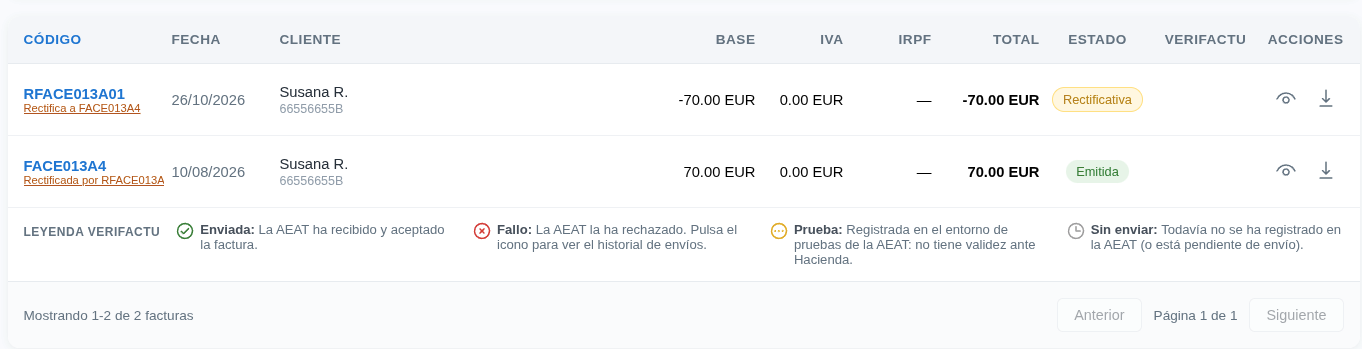
Go to History and you’ll see both documents linked:
- The original invoice shows Corrected by and the number of the corrective invoice.
- The corrective invoice has the Corrective status and shows Corrects and the number of the original invoice.
Don't delete the original
Never delete an issued invoice to make it again. Correct it instead: the correction stays on record, your invoice book still adds up, and your accountant can see it in the history.