When you have a test active, you give it to your patient from the session. The answers and the score are saved in the patient’s record, and if you give the same test several times, you can see their progress in the treatment record.
In short
Open the patient’s session and, at the end of the record, go to Give test. Choose the test and the timing (before or after the session). Then click Start to fill it in yourself, or Send by email so the patient does it. When it’s finished, the score appears in the session and in the treatment record.
Open the patient's session
Open your patient’s record, go to their sessions and open the session where you want to give the test. At the end of the record you’ll see the Give test section.
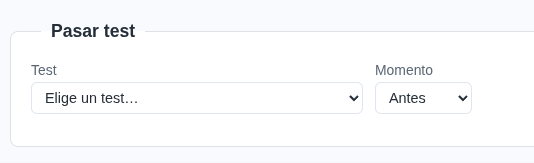
Choose the test and the timing
Under Test, choose the test you want to give. Under Timing, choose Before or After the session. This records when the patient did it.

The patient takes responsibility for doing it
When you give a test, the patient takes responsibility for filling it in when you ask them to, whether before or after the session.
Start it yourself or send it by email
You then have two buttons:
- Start: opens the test in a new tab so you can fill it in here, calmly. From that tab you don’t see the record or the sessions.
- Send by email: sends it to the patient. They have 7 days to answer it, and the result appears only in this session.
The patient answers the questions
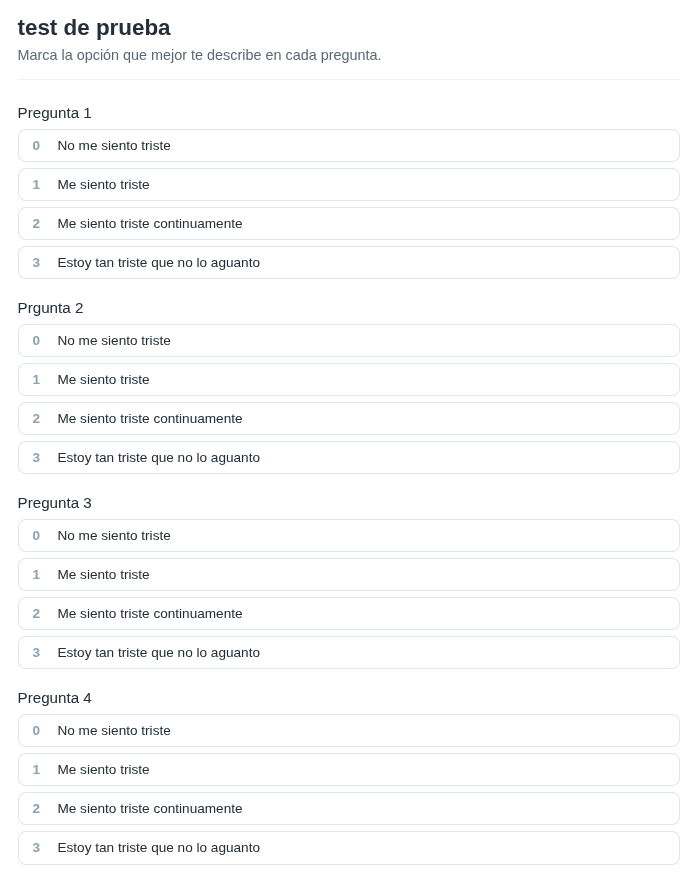
Each question shows its options. The patient marks the one that describes them best for each question.
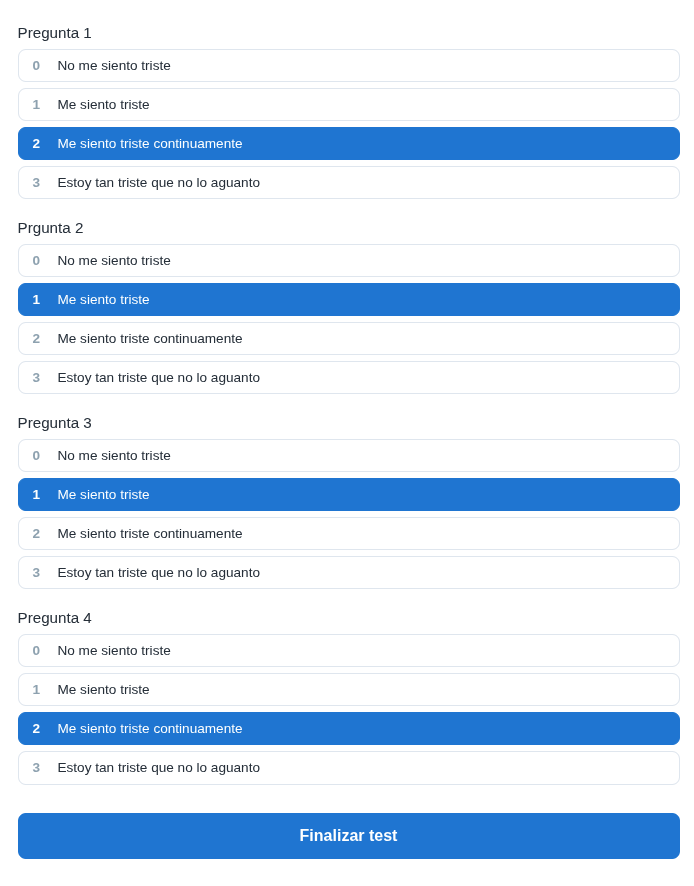
Click Finish test
When the patient has answered every question, the Finish test button appears. Until it’s clicked, the test is not saved as finished.
Check the result in the session and in the record
If the test is automatic, you’ll see the score. This appears in the session and in the treatment record, in the Tests given table, with the date, the timing, the score, the change and whether it has improved.
When you give several tests of the same kind, you see their progress in the same table. The first one you gave is the baseline, the reference the later ones are compared with.


If you need to delete a record
You can delete a test given with the trash button. Keep in mind that while a test has records, the test itself can’t be edited or deleted: see the guide Create your automatic tests.