In Invoicing → History, every issued and corrective invoice has an envelope icon. It lets you email the invoice to your patient without leaving HanaMind.
In short
Click the invoice’s envelope, check the patient’s email address and click Send. The patient receives the invoice as a PDF attachment. The envelope turns green and the send is logged on your dashboard.
Find the invoice in the History
Go to Invoices → History. In the actions column of each issued or corrective invoice you’ll see the envelope, next to view, download and correct.
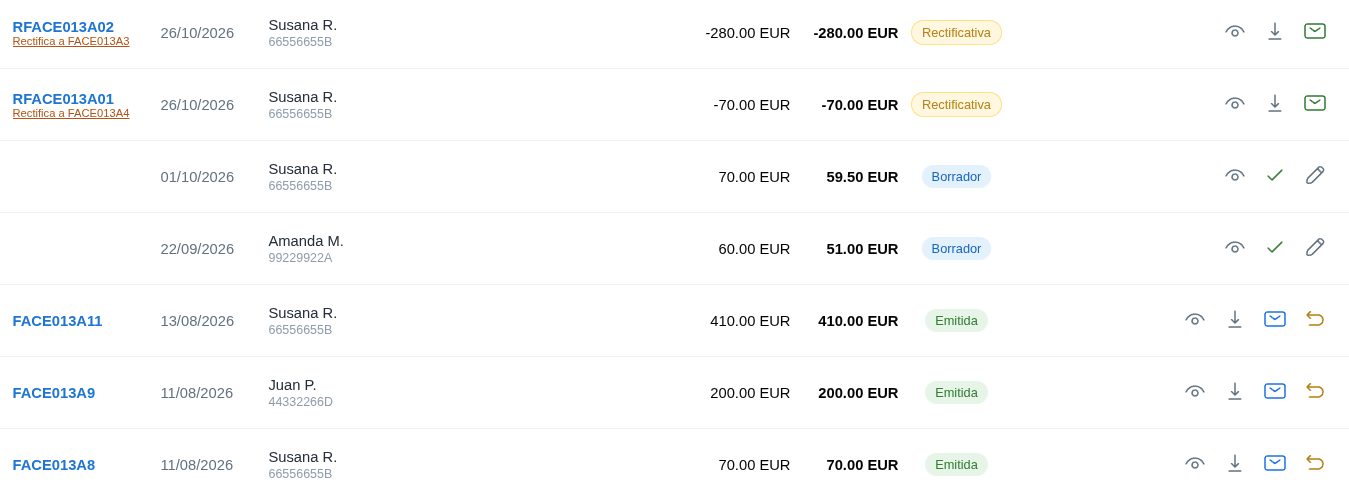
Can't see the envelope?
Draft invoices don’t have an envelope: you need to issue them first.
Check the envelope's colour
The colour tells you whether you’ve already sent it:
- Blue: the invoice has never been sent.
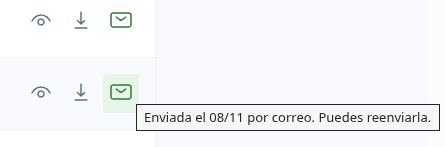
- Green: the invoice has already been sent. Hover over it to see the exact date of the last send, and you can send it again.
Send it
- Click the invoice’s envelope.
- The Send invoice by email window opens, with the email address from the patient’s record already filled in under To, plus the invoice number, date and total.
- Check the email address is right and click Send.
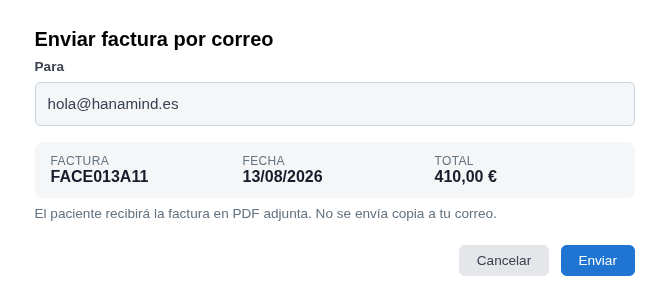
The patient receives the invoice as a PDF attachment. No copy is sent to your email.
It's logged in your notifications
Once sent, the envelope turns green and the send shows up on your dashboard, in Notifications from Monday to Sunday → Invoicing tab, as Invoice sent. We explain it in the guide Dashboard notifications.