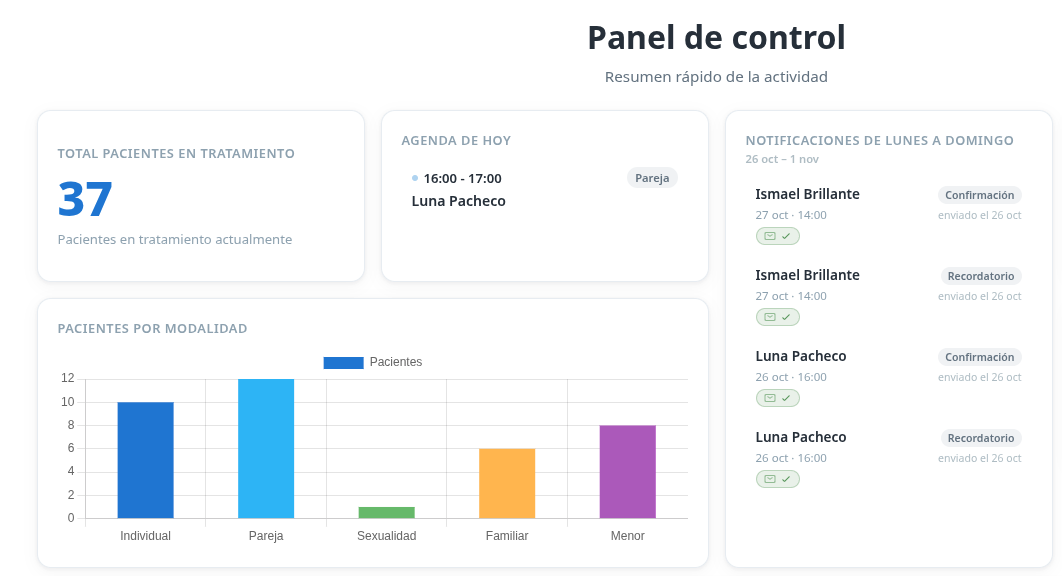
On your dashboard you’ll see a box called Notifications from Monday to Sunday. It’s the log of the alerts the platform sends to your patients this week: confirmations and reminders, by WhatsApp and by email. You don’t have to send anything: the platform does it on its own, and the box tells you what went out, what is scheduled and what failed.
In short
Each alert has one of three states: green with a check (sent), clock (scheduled, not sent yet) or red with an X (not sent). If it’s red, correct the patient’s details in their record and press resend.
Open your dashboard
Go to your dashboard, the HanaMind home screen. The notifications box sits alongside the rest of your day-to-day view.
Read the week at a glance
Each row is an alert for a patient, with:
- the patient’s name,
- the date and time of the appointment,
- the type of alert: Confirmation or Reminder,
- the sending date.
Understand the three states
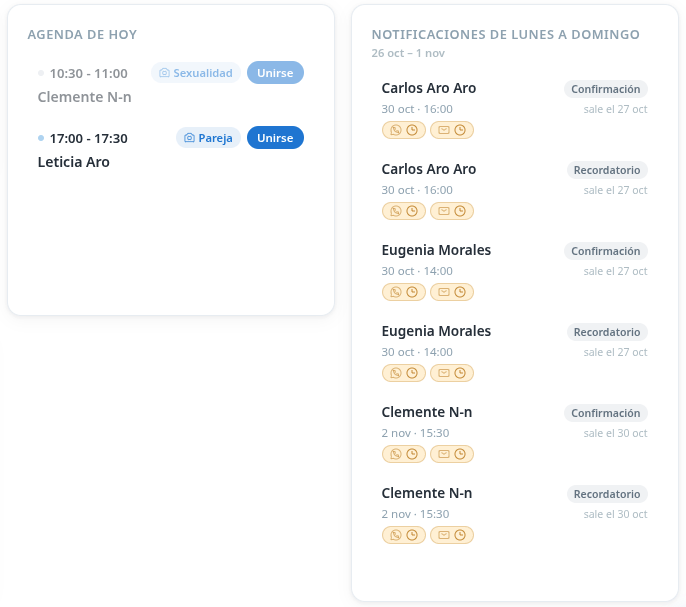
Each alert shows the channel (WhatsApp, email or both) with its status:
- Green with a check ✓ · sent on 26 Oct: the alert went out. You don’t need to do anything.
- Clock 🕒 · goes out on 27 Oct: the alert is scheduled and hasn’t gone out yet. It will go out on its own at the time you’ve set. There’s no need to resend it.
- Red with an X ✕: the alert did not go out. This is the one you need to act on.
When each alert goes out
You set how far ahead each alert is sent in the Reminders and alerts to patients card. We explain it in Choose the frequency of your reminders and confirmations.
If an alert didn't go out, correct the detail and resend it
When an alert shows in red, it’s almost always a patient detail that isn’t right:
- an email address with a typo,
- a phone number that’s wrong or incomplete (include the country code, for example +34),
- or any other problem with the sending.
Correct the detail in the patient’s record, then press the resend button next to the red icon. If it goes through, the icon turns green and shows the date of the new send.
If it stays red, let us know
If you resend an alert, check the detail and it fails again, write to hola@hanamind.es with the patient’s name and the appointment date, and we’ll look into it with you.
Know who has been reminded
A quick look at the box tells you which patients have their appointment confirmed and reminded, which alerts are still scheduled, and who to call because their alert didn’t arrive.