A pack is a bundle of prepaid sessions: the patient pays once, for example for 3 sessions, and uses them over time. Packs are turned on with a switch. While it’s off, you won’t see any pack options.
In short
Go to the Admin Panel, in the Catalogue block, click Pack types and turn on Work with packs. Then click + New pack type, fill in the form and click Create. Your packs appear at the top, next to the others.
Open 'Pack types' in the Catalogue
Go to the Admin Panel (settings ⚙ → Admin Panel). In the Catalogue block, click Pack types. It’s next to Price catalogue and Modality management.
Turn on 'Work with packs'
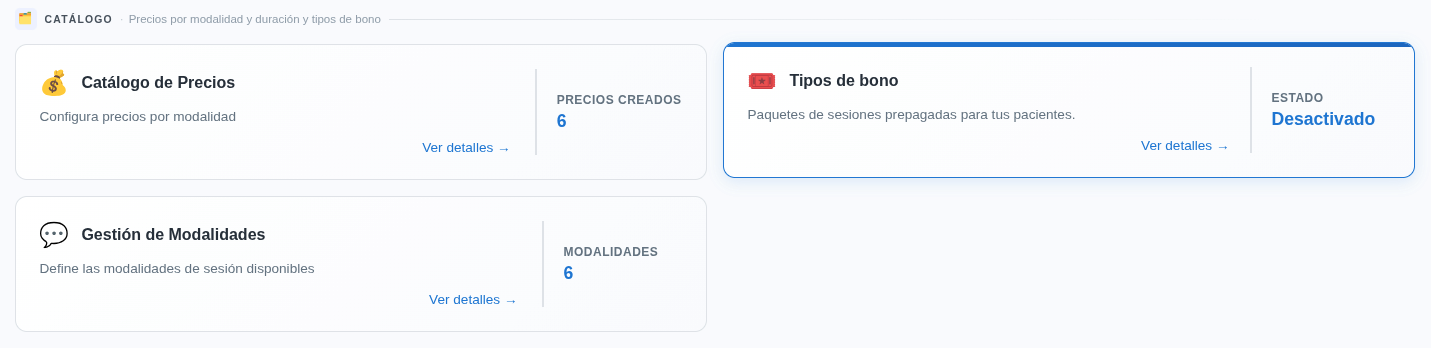
The Pack types window starts with the Work with packs checkbox unticked. Tick it to turn packs on. Once it’s on, pack options unlock across the whole app.
Click '+ New pack type' and fill in the form
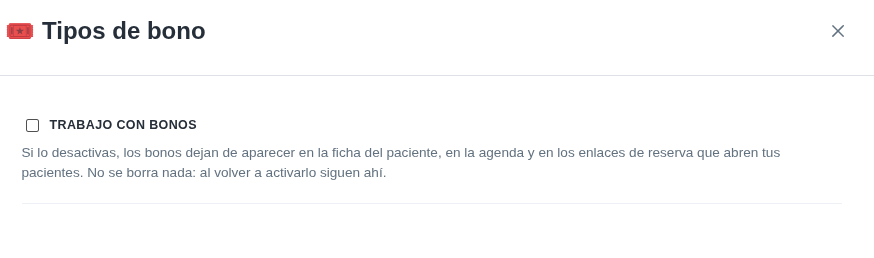
The New pack type form opens. These are the fields:
- Name: what the pack is called, for example “3-session couple pack”.
- Sessions: how many sessions it includes. It starts at 10.
- Price (€): what the patient pays for the whole pack.
- Expiry (months): how long the patient has to use the sessions. It starts at 6 months.
- Description (optional): a short text the patient sees.
- Billing: how the pack is charged. It starts at One-off payment.
- Session duration (optional): the length of each session in the pack.
- Base modality (optional): the modality of the sessions in the pack.
When it’s ready, click Create.
Check your list of packs
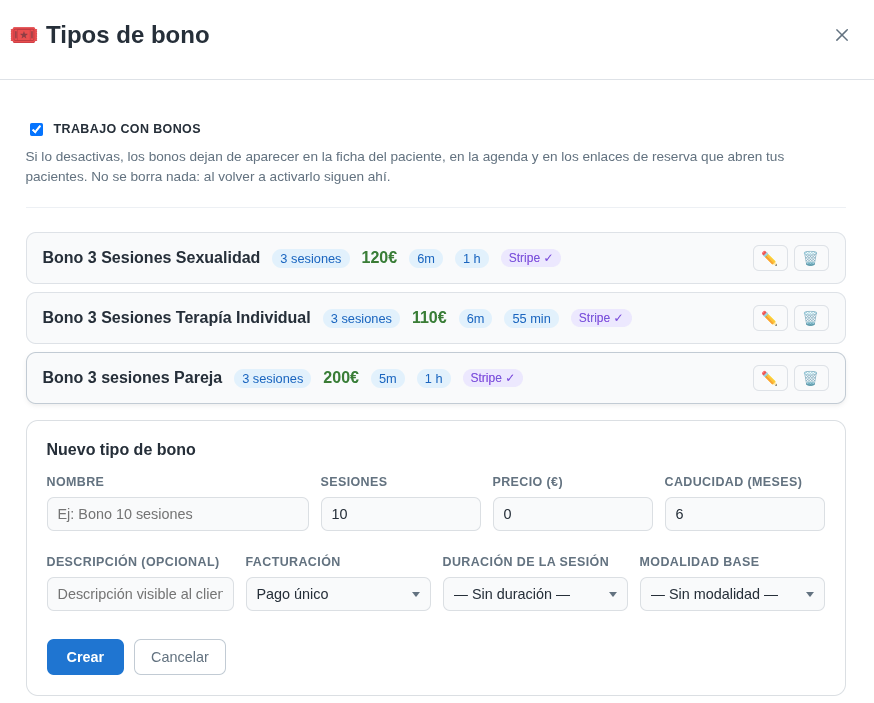
The new pack appears at the top, next to the others. Each card shows the number of sessions, the price, the expiry and the duration. Use the ✏️ and 🗑️ buttons to edit or delete it.
Stripe
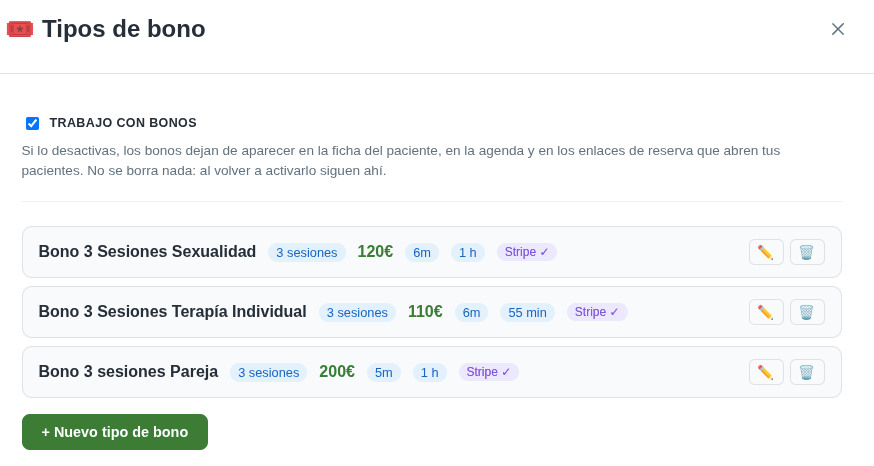
If you have Stripe turned on, each pack shows the Stripe ✓ tag, which means it’s ready to be charged through Stripe.
Where you'll see packs
With packs turned on, they appear in the patient’s record, in the calendar and in the patient’s booking link. From there you can give them a single session or assign a pack. In accounting, sessions paid with a pack show up in the pack column. How to assign them, step by step, is in the guide Assign packs to your patients.
If you turn packs off
When you untick Work with packs, the pack options disappear from the patient’s record, the calendar and the booking links. Nothing is deleted: when you turn it on again, your packs are still there.