When you’ve offered a pack, your patient books almost the same way as a single session, but they see the pack on every screen. This guide follows the path they take from the booking link. If they book from the widget on your website, it’s the same path.
In short
The patient sees the pack you offer on every screen. They choose the session type, the day and the time, accept the privacy policy and confirm. The privacy policy is always accepted, whether it’s a pack or a single session.
See the pack you're offering
When they open the link, the screen shows the pack under How you get this session: “Your therapist is offering you the pack” and the pack’s name, with its sessions. Right below, it says whether they have to pay anything to book.
At the top they also see the payment mode. If it’s No charge, they pay nothing when booking. If it’s Full price, they’ll have to pay for the pack before the appointment is booked.
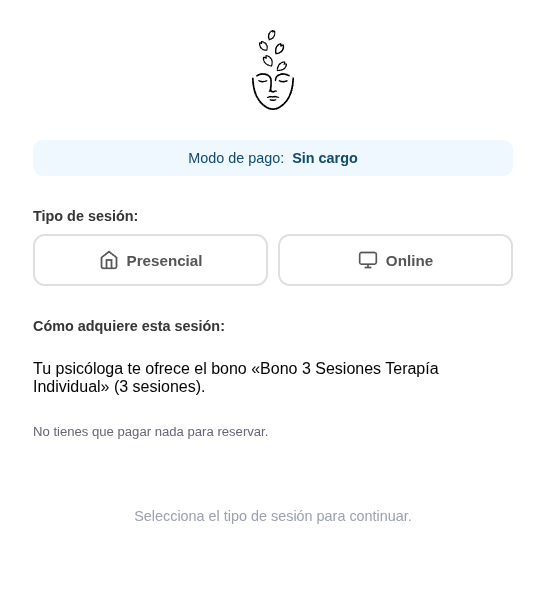
Choose the session type
Choose In person or Online, just as with a single session.
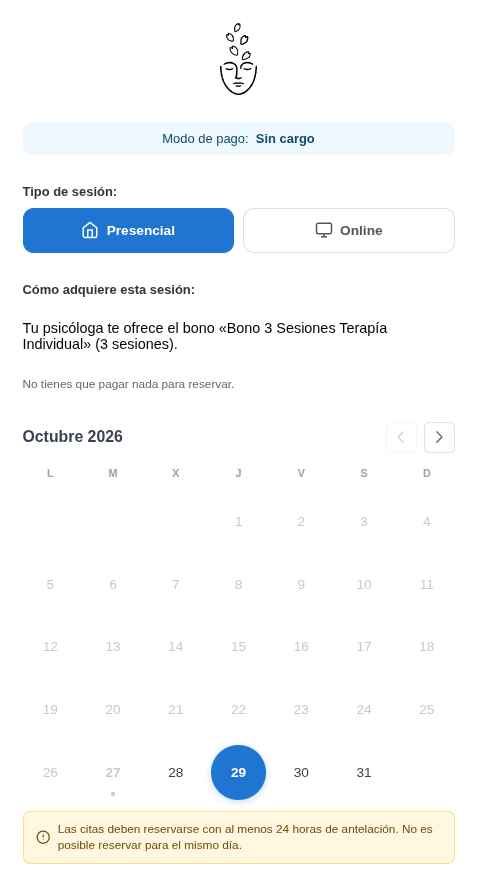
Choose the day, then the time
In the calendar, the patient chooses the day. Appointments must be booked at least 24 hours in advance, so the same day can’t be booked.
Once they pick a day, the available times for that day appear below, and they choose the time. The pack stays visible at the top throughout.
Accept the privacy policy
Before confirming, they have to tick the box I agree that my data, including health data, is processed to manage my appointment, according to the privacy policy. Without that box, they can’t confirm the booking. This is the same with a pack as with a single session.
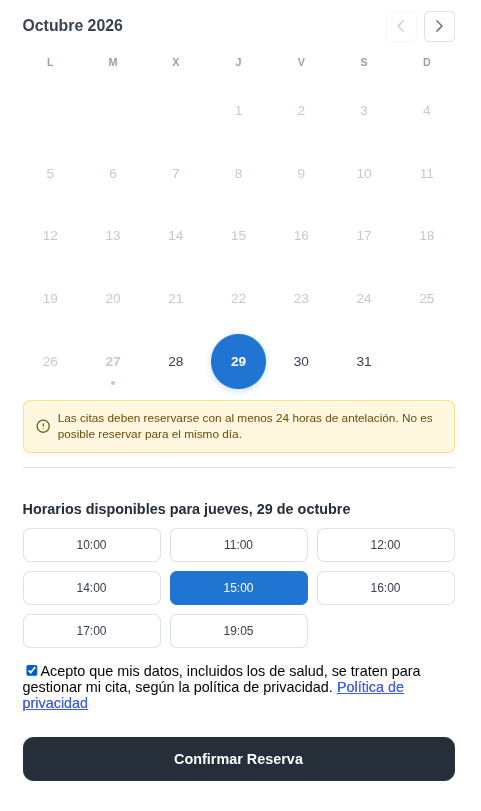
Click Confirm booking
When they confirm, the appointment is booked. If the payment mode is No charge, it’s booked straight away. If it’s Full price, they pay first and the appointment is booked once the payment is done.
To see what the patient sees at the end, and which emails each of you receives, read the guide What each of you sees and receives when booking.
Careful with unfinished payments
If the patient starts paying with Stripe and doesn’t complete it (they leave the page or leave it open without finishing), Stripe holds that slot for 30 minutes in case they come back to finish booking. During those 30 minutes the slot doesn’t appear as available in the calendar, even though the payment wasn’t completed successfully.
You and your patient each receive an email
When the patient books this way, both you and your patient receive an email: yours tells you an appointment has been booked, and theirs tells them their appointment has been booked successfully.
When a link stops working
If the link is for a pack, it’s invalidated when the pack runs out: the patient can no longer use it to book. To keep going, assign them another pack and send them a new link.
If the link is for a single session, it isn’t invalidated on its own: it keeps working until you press Regenerate link.