A single session is an appointment without a pack: it’s charged at the price of your modality and your catalogue. You can assign it in three ways, just like packs: from the booking link in the patient’s record, from the calendar when you book an appointment, or from the booking widget on your website.
In short
From the booking link in the record, you send the link and the patient books their session. From the calendar, you choose Single session when you book the appointment. From the widget, the patient books on their own on your website. All three use the price of your modality and your catalogue.
From the booking link in the record
Open the patient’s record and find the Booking link block. Choose the Payment mode and decide whether to require an access PIN. If you have packs turned on, leave Pack to offer on None (single session), so the patient only books single sessions.


Send them the link
Click Send by email or Copy link and send it to the patient. From that link they book their session, and it’s charged according to the payment mode you chose.
From the calendar
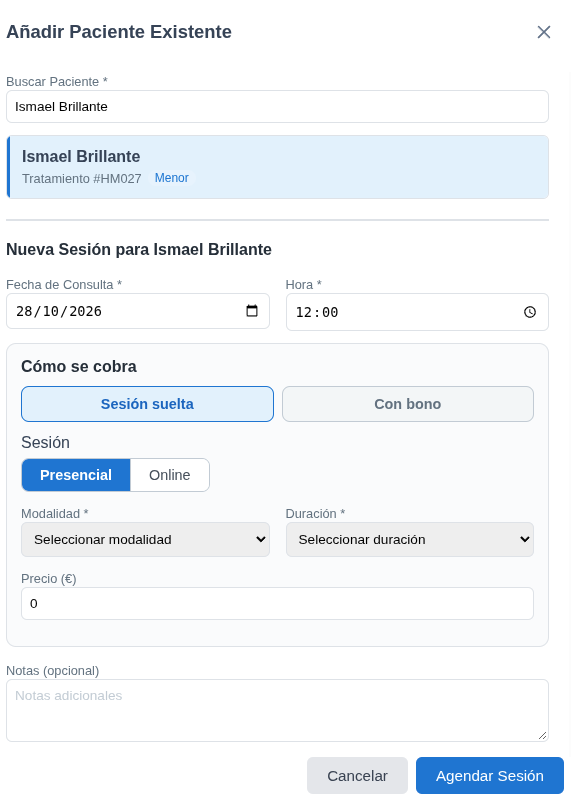
When you book an appointment, under How it’s paid choose Single session. Then select the modality, the duration and the price, which fills in automatically from your catalogue, and click Book session.
If you have packs turned off, you won’t see the choice between single session and pack: every appointment is booked as a single session.
From the booking widget
If you have the widget on your website, the patient can also book a single session from there, without you having to do anything. We explain how to install and set it up in its own section.
Single session or pack
A single session is charged every time, at your modality’s price. If you want the patient to have a bundle of prepaid sessions, assign them a pack: we explain it in the guide Assign packs to your patients.
You and your patient each receive an email
When the patient books this way, both you and your patient receive an email: yours tells you an appointment has been booked, and theirs tells them their appointment has been booked successfully.
When a link stops working
If the link is for a pack, it’s invalidated when the pack runs out: the patient can no longer use it to book. To keep going, assign them another pack and send them a new link.
If the link is for a single session, it isn’t invalidated on its own: it keeps working until you press Regenerate link.
Careful with unfinished payments
If the patient starts paying with Stripe and doesn’t complete it (they leave the page or leave it open without finishing), Stripe holds that slot for 30 minutes in case they come back to finish booking. During those 30 minutes the slot doesn’t appear as available in the calendar, even though the payment wasn’t completed successfully.