Ideal for patients you already have on file. From their own record you generate a personalised booking link: you choose whether they pay upfront, you send it to them and let them pick a slot themselves. The appointment lands in your calendar on its own.
In short
In the patient's record, the Booking link block lets you decide three things: whether the appointment is paid upfront or free of charge, how you deliver the link, and whether you protect it with a PIN. Each time you generate a new one, the previous link stops working.
Open the record and scroll to 'Booking link'
Open the patient's record and scroll to the bottom: the second-to-last block is Booking link. It gathers every booking option in one place.

Choose the payment mode: Full price or Free of charge
Inside the block you'll see two buttons that define how the appointment is charged:
- Full price: the patient can't book until they pay the amount upfront through Stripe. It requires Stripe to be active: if you don't have it connected, the patient will be able to book without paying even if this option is selected.
- Free of charge: the patient books directly, with no prior payment. You handle the charge afterwards, as usual.
Decide how you deliver the link
With the payment mode chosen, pick how to send it:
- Send by email: HanaMind sends it straight to the patient's email.
- Copy link: you copy it and share it however you prefer (SMS, WhatsApp…).
Coming soon
From September you'll also be able to send it from HanaMind's own WhatsApp, without leaving the app.
Press 'Generate link'
Pressing Generate link creates the link, ready to share. One important detail: every time you generate a new one, the previous link is automatically invalidated and stops working.
This gives you control in situations like:
- You want to switch from Full price to Free of charge (or the other way around).
- You have a difficult patient and need to cut off their access.
- The patient tells you someone around them got hold of the link and you want to void the old one.
Security: access PIN
Tick Require access PIN to protect the link. The first time the patient opens it, they create their own 4-digit PIN; from then on, even if someone gets the link, they can't get in without that PIN. If the patient forgets it, no problem: you regenerate the link and send it again.
What your patient sees when they open the link
The patient goes through a guided, step-by-step flow, with no sign-up:
Session type. They choose between In person or Online, regardless of the modality you have set up.
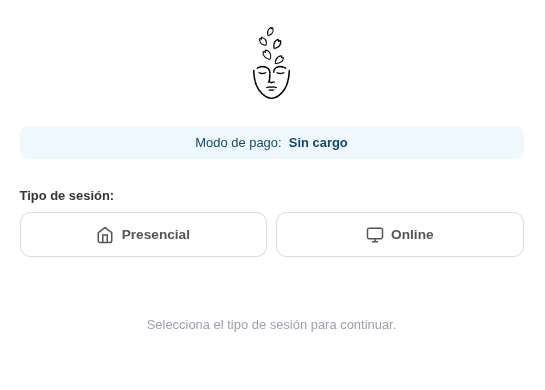
Duration. If your modality allows several durations (1 h, 45 min, 30 min…), the patient picks how long they want the session to be. Then they pick the day and your available slots appear; appointments must be booked at least 24 h in advance.
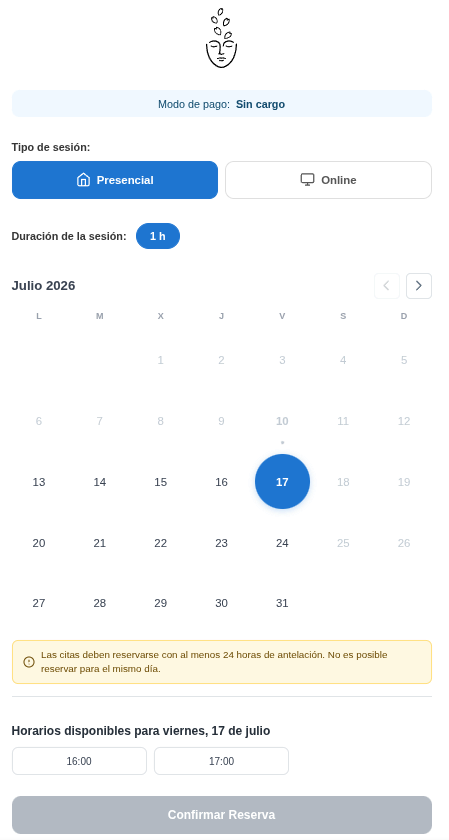
On pressing Confirm booking:
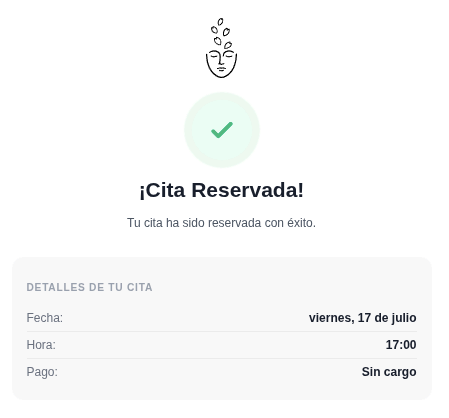
- If it was Free of charge, the appointment is booked instantly and the patient sees a confirmation screen.
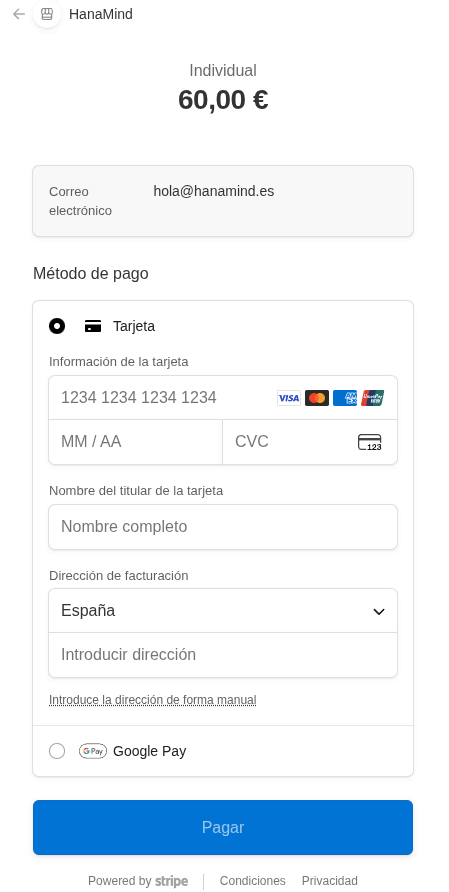
- If it was Full price, they pay first by card (Stripe) and the appointment is only booked once payment is complete.
And it shows up in your calendar
As soon as the patient confirms (and pays, if applicable), the appointment is added to your calendar with their details, ready to work with. You find out without lifting a finger.
Would you rather have new patients who aren't on your list yet book too? See the From your website using a widget and From your profile on hanamind.es guides.