HanaMind sends your patients four automatic emails: confirmation, reminder, rescheduling and cancellation. From the Patient emails module you can write the text of each one so it sounds like you.
In short
Go to Modules, click Patient emails, turn on Use my own texts, write the subject and message of each email and click Save. The date, the time and the confirm, change or cancel buttons are added automatically: you only write the text.
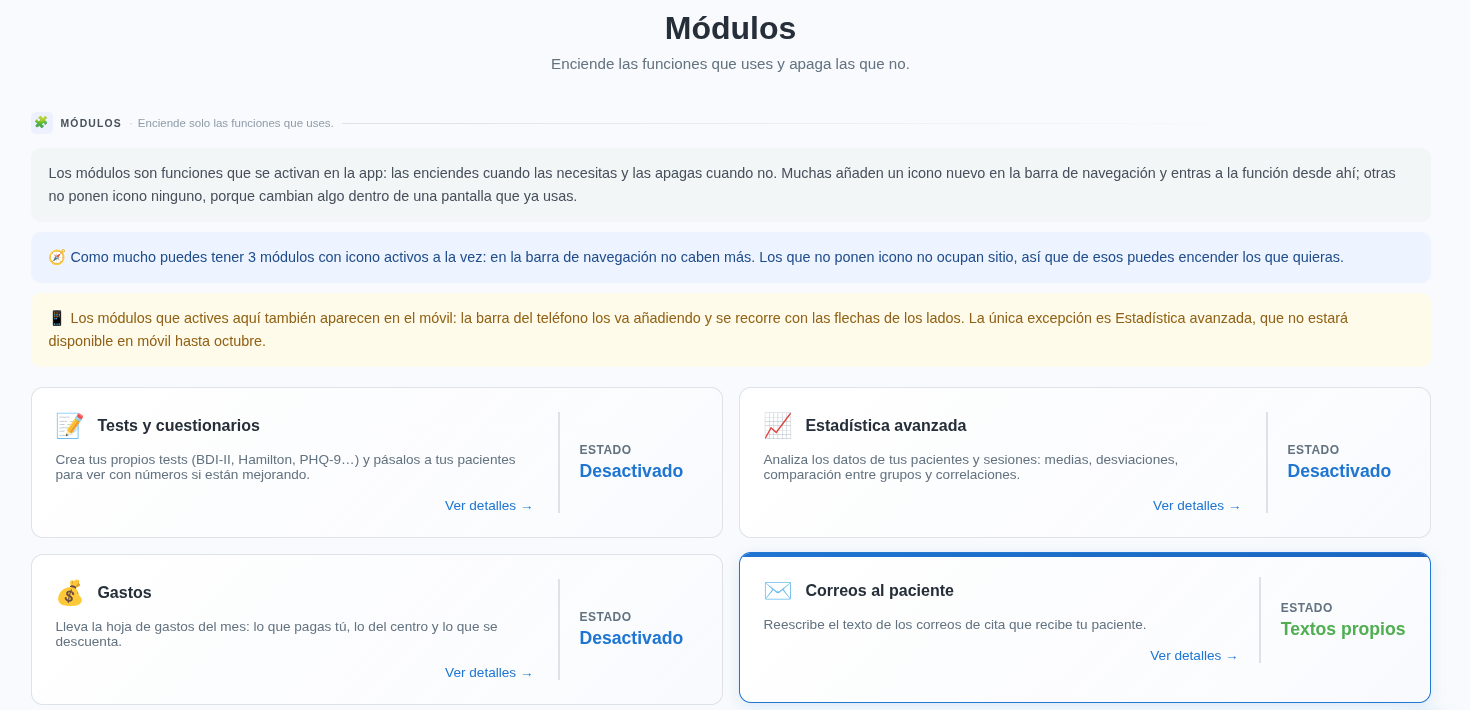
Go to the module
Go to Modules and click Patient emails.
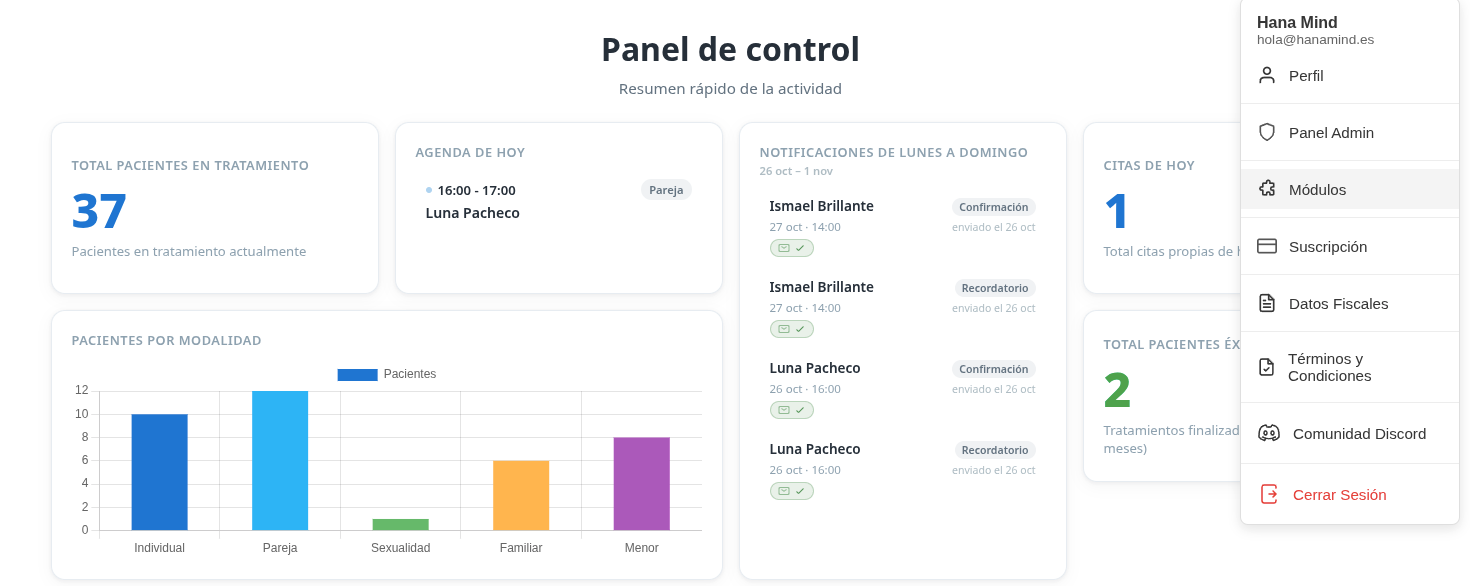
Open your patient's emails
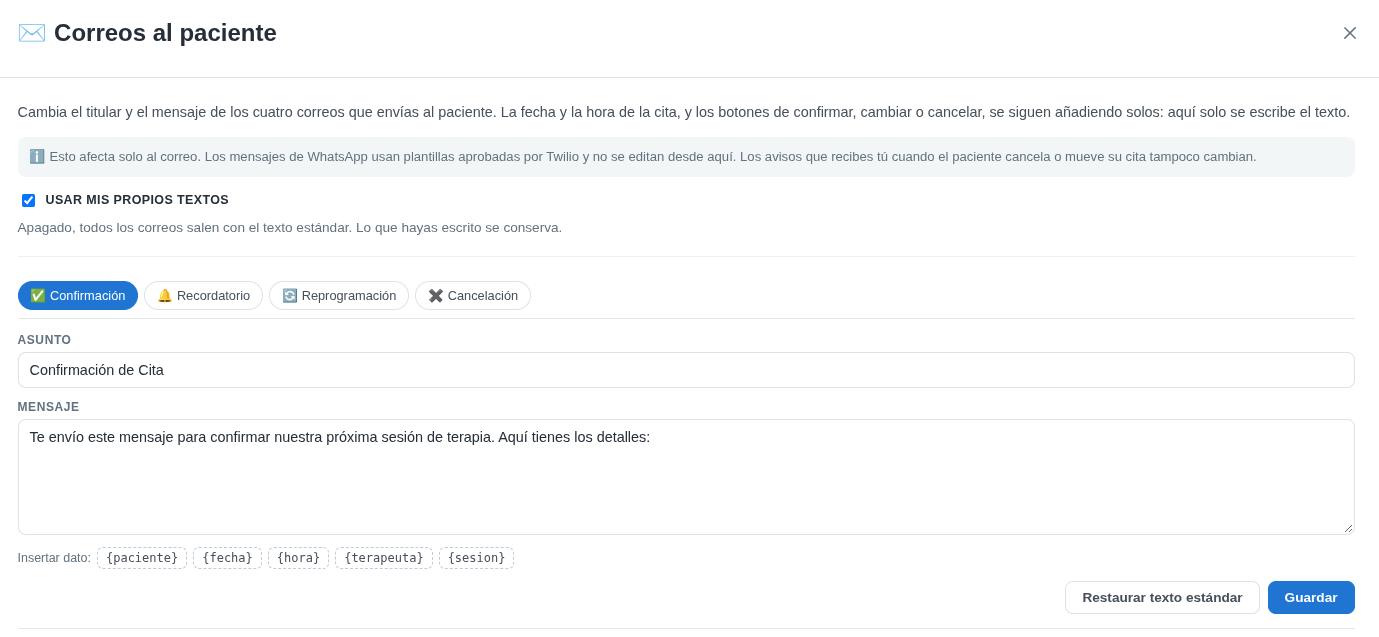
The Patient emails window opens. There you can write the four emails your patient receives:
- Confirmation: to confirm the appointment.
- Reminder: to remind them of an upcoming appointment.
- Rescheduling: when the date or time of the appointment changes.
- Cancellation: when the appointment is cancelled.
Tick Use my own texts. While it’s off, the patient receives the standard emails. If you turn it off later, the standard emails come back, but anything you’ve written is kept.
Write the subject and message
Pick a tab, change the subject and write the message. Repeat this for each of the four emails. To go back to the original text, click Restore standard text.
Use the placeholders
Below the message you’ll find these placeholders. Click one to insert it where your cursor is. When the email is sent, each one is replaced with the real detail of the appointment:
{paciente}→ the patient’s name.{fecha}→ the appointment date.{hora}→ the appointment time.{terapeuta}→ your name.{sesion}→ the session type (for example, individual or couple therapy).
For example, if you write Hola {paciente}, te espero el {fecha} a las {hora}, the patient reads “Hola Ana, te espero el 03/09/2026 a las 10:00”.
Check how your patient will see it and save
Below the form is This is how your patient will see it: exactly the email they receive, with the date and time box and the confirm, change or cancel buttons already in place.
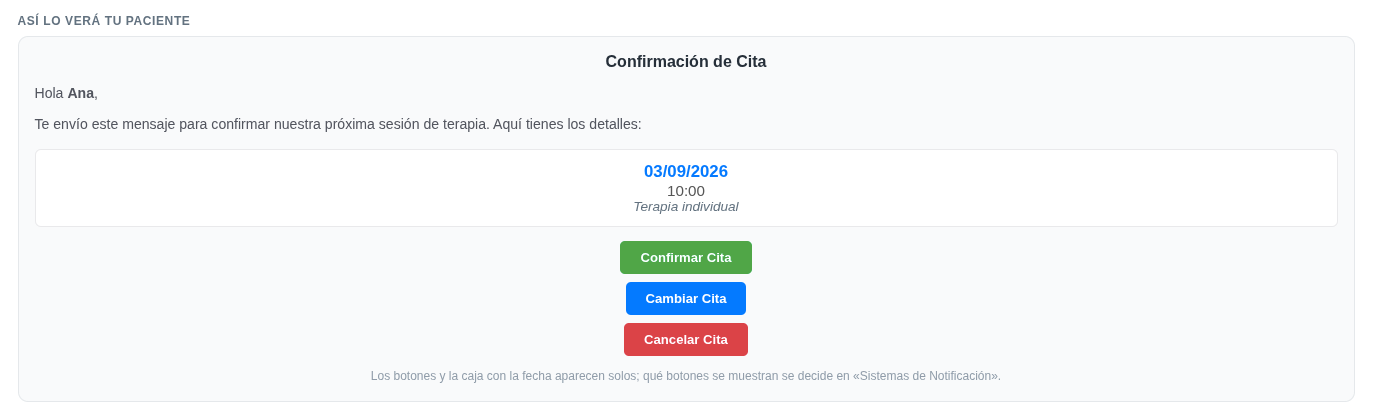
Important: if you don’t click Save, the changes are not saved and your patient will keep receiving the previous text. Click Save when the email looks right.
What doesn't change
This only affects email. WhatsApp messages use templates approved by Twilio and can’t be edited here. The alerts you receive when a patient cancels or moves an appointment don’t change either.
Tip
Keep texts short and make clear what the patient needs to do: confirm, change or cancel with the buttons in the email. That way the appointment gets confirmed without you having to write to them.