Your patient receives two automatic alerts about their appointment. Both are set in Reminders and alerts to patients, inside the Communication section of the Admin Panel, and in that same window you choose how far ahead each one is sent.
What each alert is
- Appointment reminder: reminds the patient they have an appointment.
- Appointment confirmation: asks the patient to confirm, and lets them reschedule or cancel from the same message, with buttons.
The frequency is independent of the channel (WhatsApp, email or Google): the channel decides how the alert arrives, and the frequency decides when.
Open Reminders and alerts to patients
Go to settings ⚙ → Admin Panel, scroll down to Communication and press View details on the Reminders and alerts to patients card.
Choose the reminder frequency
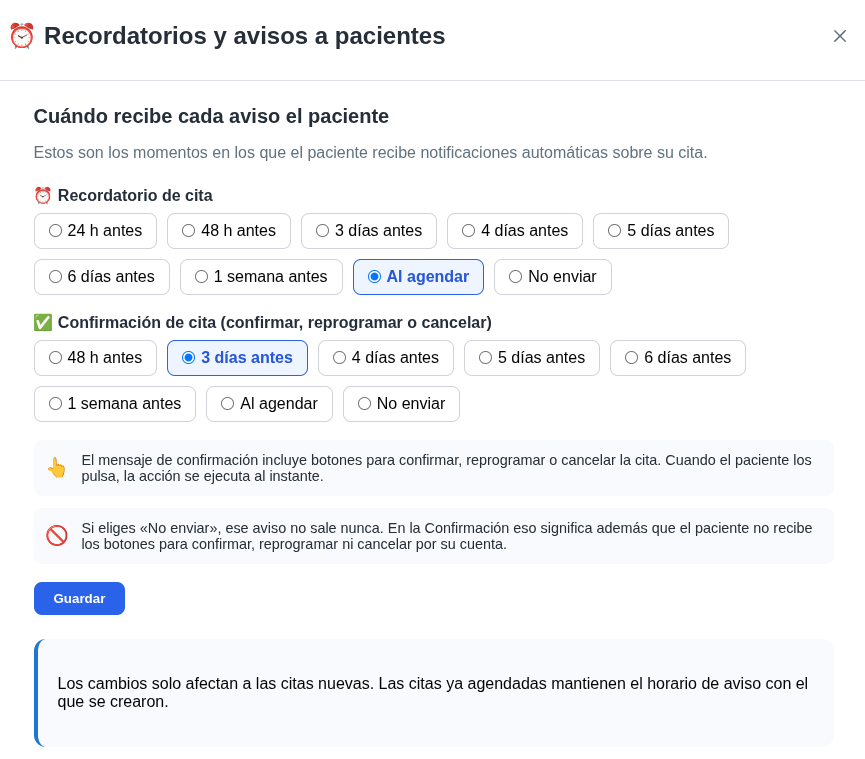
Under Appointment reminder you choose how far before the appointment the alert is sent:
- 24 h before or 48 h before.
- 3 to 6 days before, one option per day.
- 1 week before.
- When booked: sent as soon as the appointment is created.
- Don’t send: the patient gets no reminder.
Choose the confirmation frequency
Under Appointment confirmation you choose when the patient is asked to confirm. The options are similar, without the 24 h one: 48 h before, 3 to 6 days before, 1 week before, when booked or don’t send.
What Don't send means for the confirmation
If you choose Don’t send, the patient doesn’t get the confirmation and also doesn’t get the buttons to confirm, reschedule or cancel on their own.
Save your changes
Press Save. Changes only apply to new appointments: appointments you already have keep the alert timing they were created with.
How to see what's scheduled
When an alert is scheduled, it shows in the notifications box on your dashboard with a clock and the date it will go out. See the guide Dashboard notifications: sent, scheduled and failed.