The Expenses module is your monthly expense sheet: what you pay yourself, what the centre pays and what gets deducted. It helps you keep track of your money so you know how much you can invest in your business or in yourself.
In short
Go to Modules, click Expenses and turn on Activate expenses. Then, from the wallet icon in the navigation bar, log the month’s expenses in their box. For expenses that repeat every month, use the three dots at the top right.
Turn on the Expenses module
Go to Modules and click Expenses.
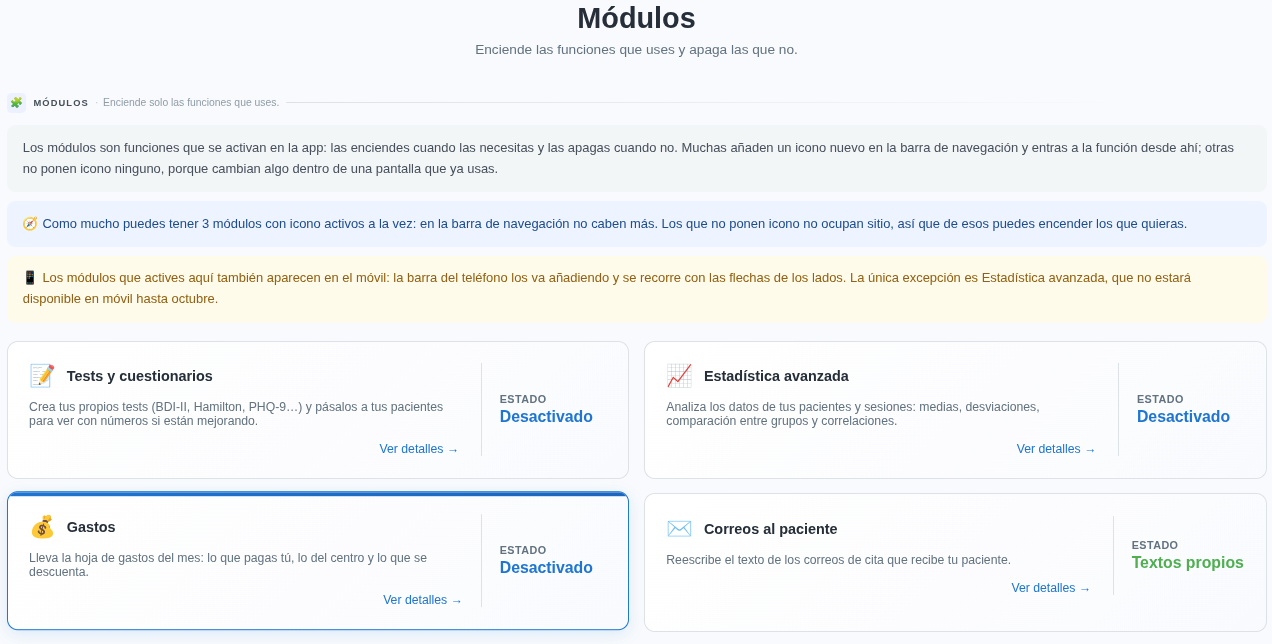
Tick the Activate expenses box.

On mobile too
Once it’s on, a wallet icon appears in the navigation bar, and it also shows on mobile.
Open the sheet from the wallet icon
With the module on, you’ll see a new icon in the navigation bar: the wallet. Click it to open the expense sheet.

Learn the three boxes on the sheet
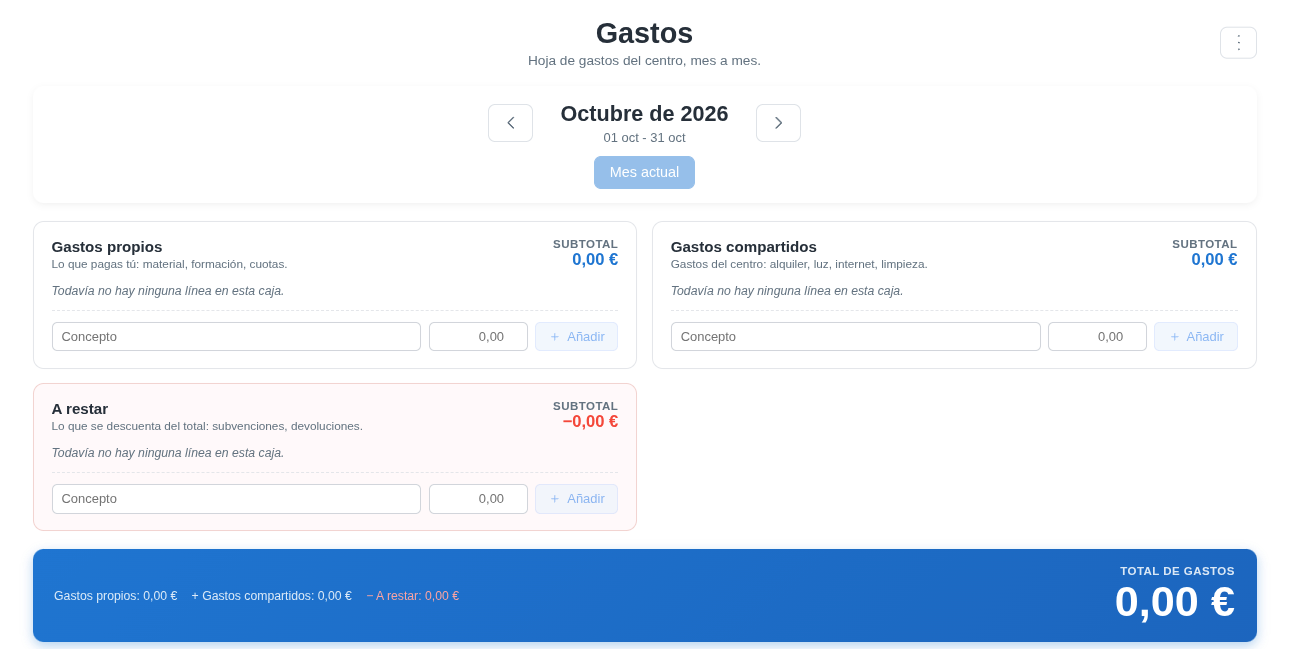
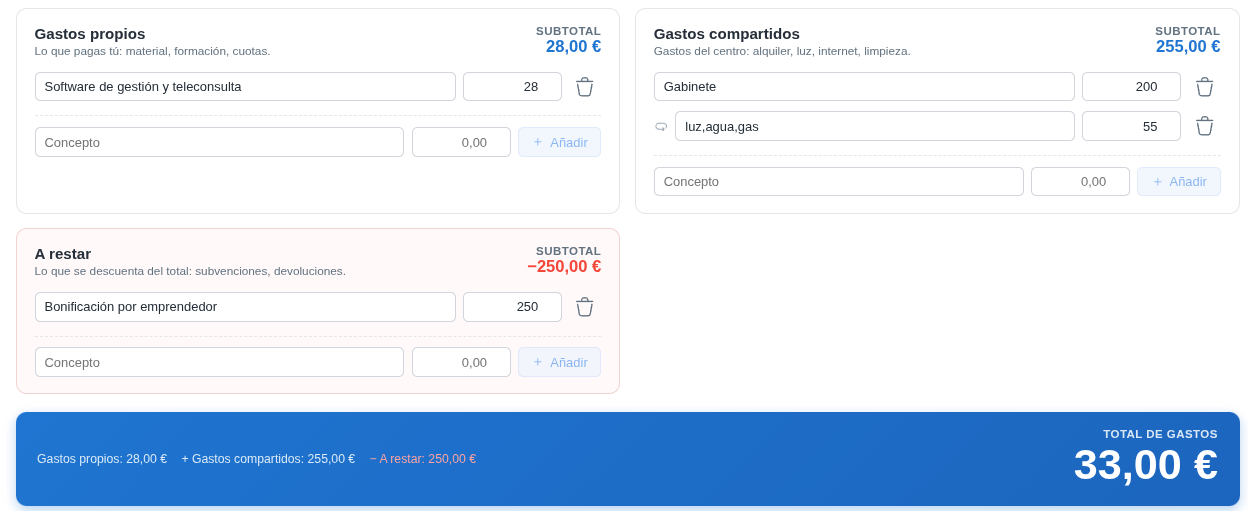
At the top of the sheet you have the month you’re viewing and three boxes:
- Own expenses: what you pay yourself, such as materials, training or fees.
- Shared expenses: the centre’s costs, such as rent, electricity, internet or cleaning.
- To deduct: what gets taken off the total, such as grants or refunds.
Each box has a field for the concept, one for the amount and the Add button. At the bottom is the total expenses, which adds your own and shared expenses and subtracts what’s in “To deduct”.
Log the month's expenses
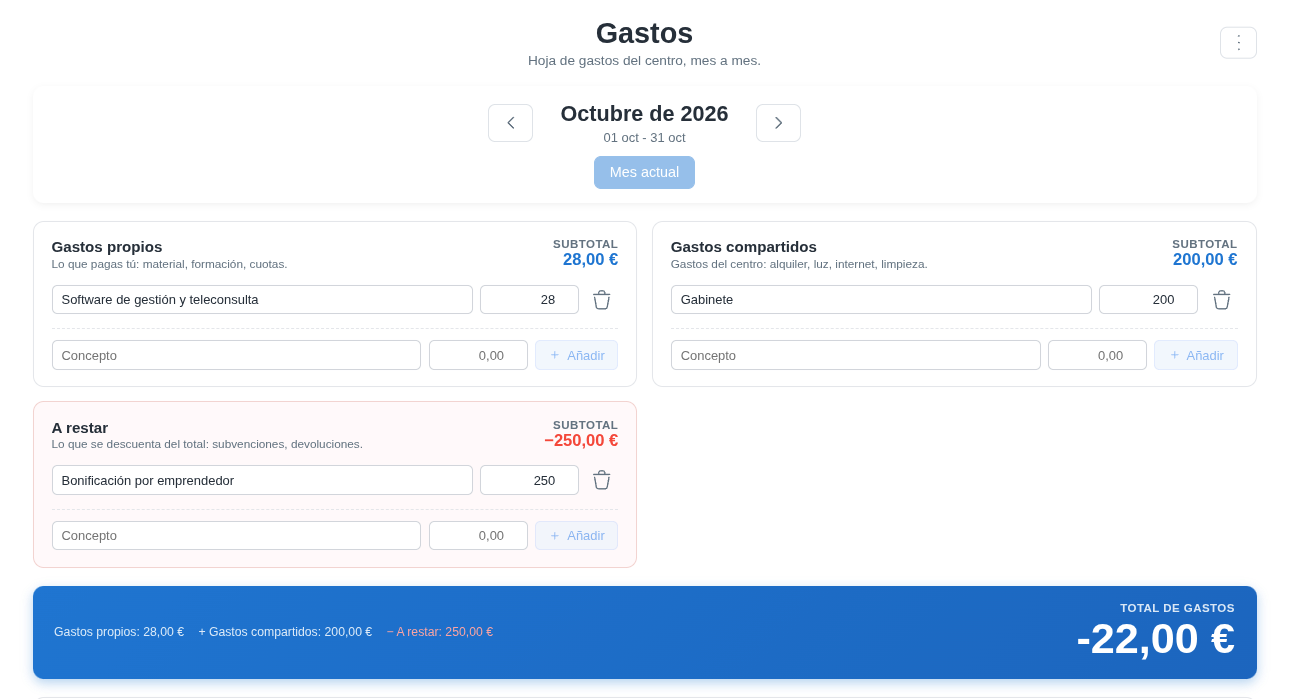
Type the concept in the right box, enter the amount and click Add. The line appears in the box, and the subtotal and total update automatically.
You can delete a line with the bin icon.
Set up recurring expenses
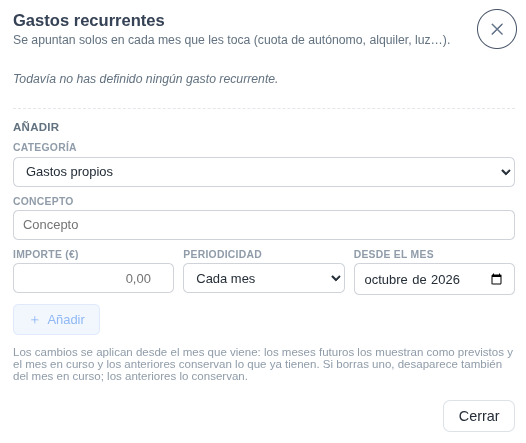
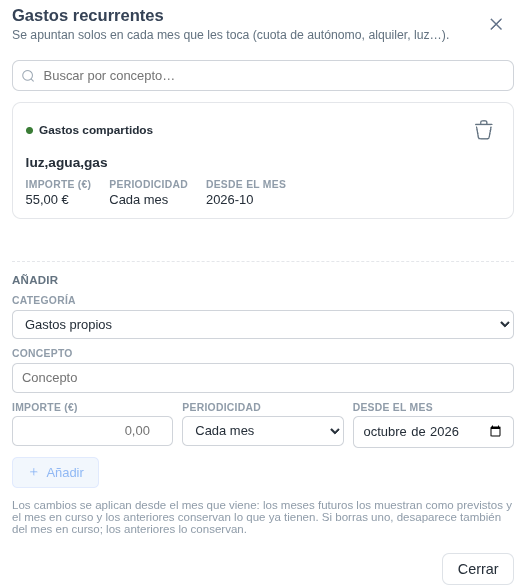
Expenses that repeat every month, such as the self-employed fee or rent, don’t need to be logged every month. Click the three dots at the top right and the Recurring expenses window opens.
In the Add form:
- Category: choose whether it’s an own expense or a shared expense.
- Concept: the name you want to give it.
- Amount (€): what it costs each time.
- Frequency: how often it repeats, for example Every month.
- From the month: the month it starts.
Once saved, it appears in the list in the window.
How changes apply
Changes apply from the following month: future months show them as planned, and the current month and earlier ones keep what they already have. If you delete a recurring expense, it disappears from the current month, but earlier months keep it.
Careful when deleting a recurring expense
If you delete a recurring expense in a month, the earlier months stay recorded as they are, but from that month on it’s no longer recorded. For example: if the self-employed fee has been recorded automatically from January to October and you delete it in November, January to October stay as they are, and from November on it no longer appears.
See recurring expenses on the monthly sheet
Recurring expenses appear on the sheet of every month they apply to. To tell them apart, they have a symbol on the left of their concept.
Check the year's history
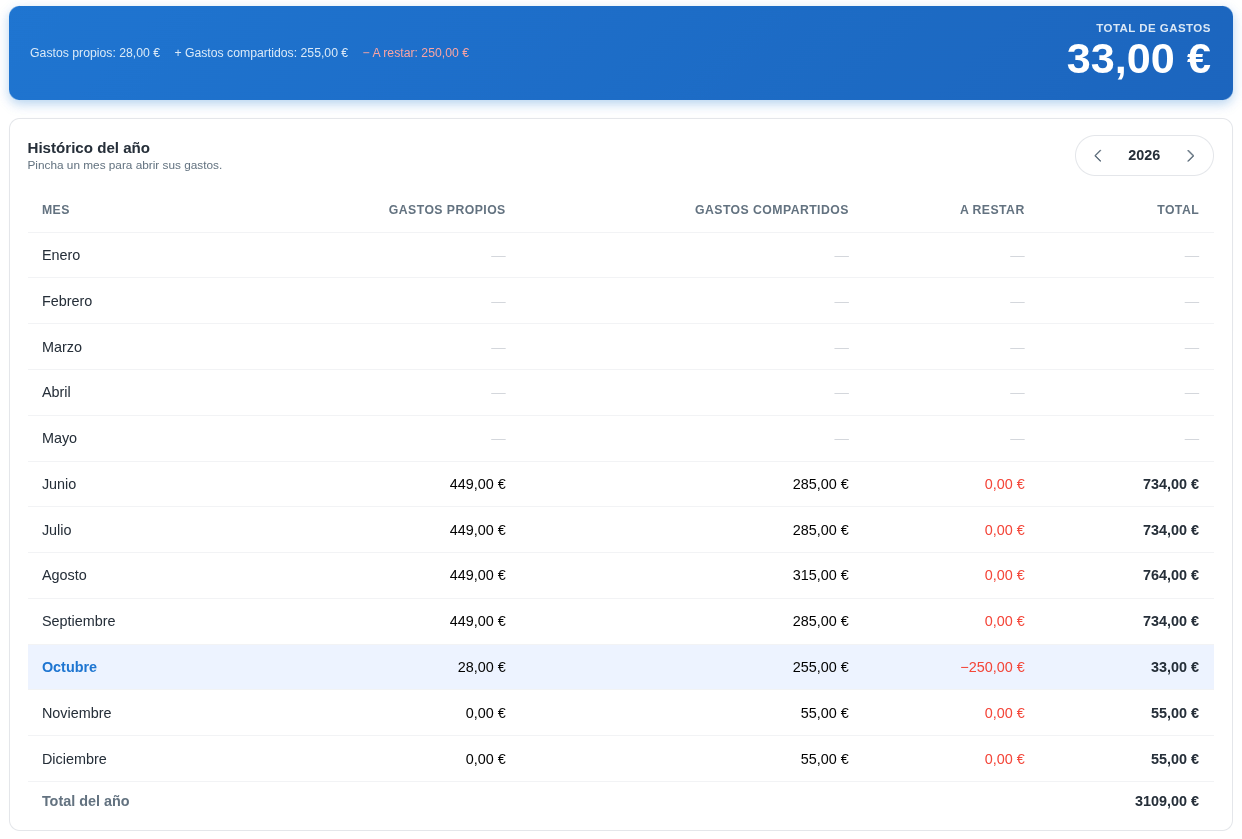
At the bottom you have the Year history, with a row per month: own expenses, shared expenses, to deduct and total.
Click a month to open its breakdown: you’ll see every expense for that month.
What it's for
Keeping your expenses up to date tells you how much you have left each month, so you can decide with confidence how much to invest in your business or in yourself. Also, with the Accounting and Expenses sections you can compare your months and see which are your best and your weakest.