Every invoice has a number. With document sequences you can create separate series: one for your consultations, another for training, another for workshops. Each series has its own numbering and doesn’t mix with the others.
In short
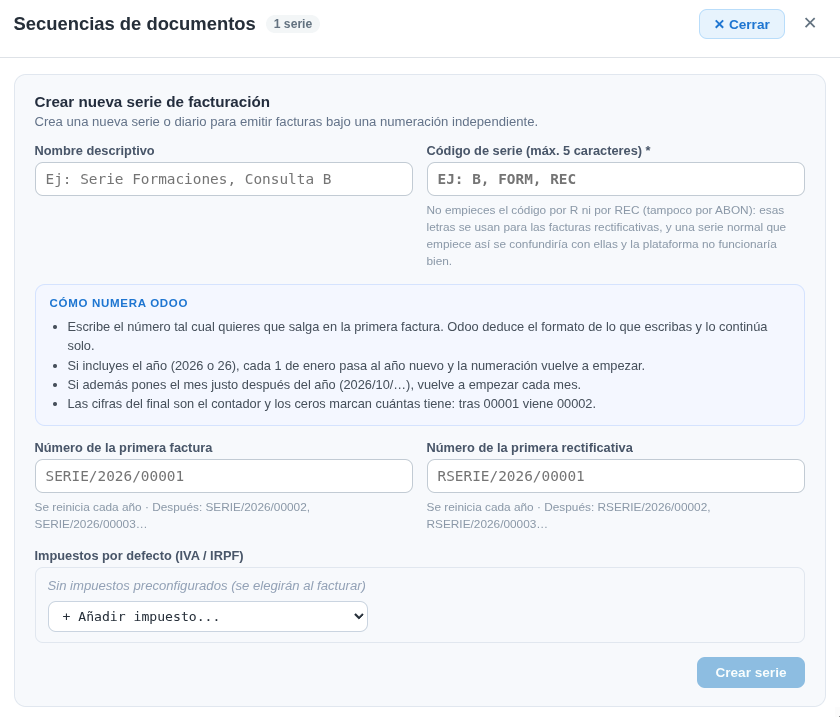
Go to Invoicing settings → Document sequences → Create new series. Enter a name, a code of up to 5 characters, the number of the first invoice and the number of the first corrective invoice. Press Create series and you can choose it when invoicing.
Open the document sequences
Go to Invoices, press the three dots ⋮ at the top right and choose the Document sequences card. You’ll see your existing series; the title shows how many you have.
Name the series and give it a code
- Descriptive name: so you recognise it, for example Training series or Consultation B.
- Series code (5 characters at most): letters such as B or FORM.
Codes you must not use
Don’t start the code with R, REC or ABON. Those letters are used for corrective invoices, and a normal series that starts that way would be mixed up with them and the platform wouldn’t work properly.
Write how you want it numbered
In Number of the first invoice write the number exactly as you want it to appear on the first invoice, for example SERIES/2026/00001. The system works out the format from what you write and continues it by itself:
- The digits at the end are the counter: after 00001 comes 00002.
- The zeros set how many digits the number has.
- If you include the year (2026 or 26), numbering starts again every 1 January.
- If you also put the month right after the year (2026/10/…), it starts again every month.
Check the number of the first corrective invoice
Number of the first corrective invoice sets the numbering of the corrective invoices in that series. By default it starts with an R in front (for example, RSERIES/2026/00001), and it also starts again every year.
Choose default taxes (optional)
Under Default taxes (VAT / IRPF) you can add the taxes you apply with this series, so they’re already selected when you invoice. If you don’t add any, you choose them each time you invoice.
Create the series and use it when invoicing
Press Create series. When you generate drafts in a batch, choose the series in the Series dropdown of the data bar (see the guide Generate and download invoices in batches). That way each type of invoice gets its own numbering.
Tip
Create one series for each type of work you invoice (consultations, training, workshops). Each type then has its own numbering, and it’s easier to find and count your invoices.