Your invoices can carry your identity: a logo in the header and a stamp in the bottom right corner, for example with your name and your professional registration number. Everything is set up from the invoicing settings.
In short
Logo: upload the image and press Save. Stamp: upload the image, tick Show the stamp on invoices and press Save. If you don’t tick that box, the stamp is saved in the system but doesn’t appear on your invoices.
Open the invoicing settings
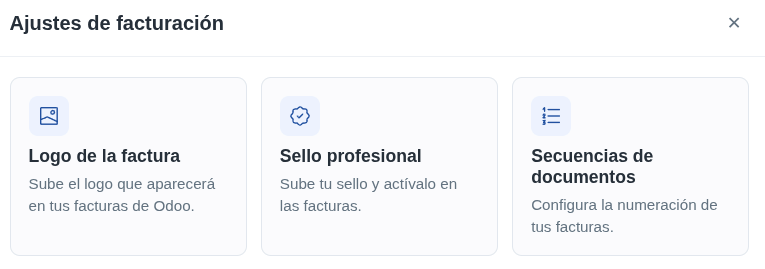
Go to Invoices and press the three dots ⋮ at the top right. Invoicing settings opens with three cards: Invoice logo, Professional stamp and Document sequences (we explain that one in the guide Number your invoices: sequences and series).
Upload the logo and save it
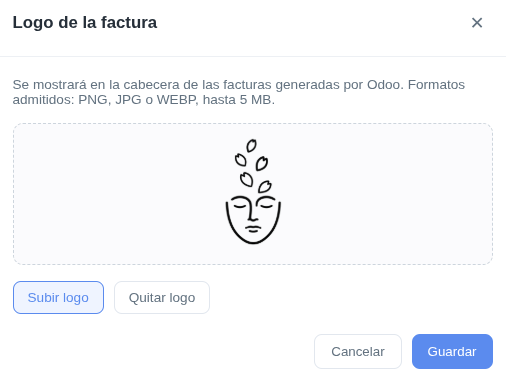
Press Invoice logo, then Upload logo. It accepts PNG, JPG or WEBP, up to 5 MB. The logo appears in the header of your invoices. To change it, upload another one; to remove it, press Remove logo.
Don't forget to Save
Always press Save when you finish. If you close the window without saving, the logo isn’t kept.
Upload the stamp
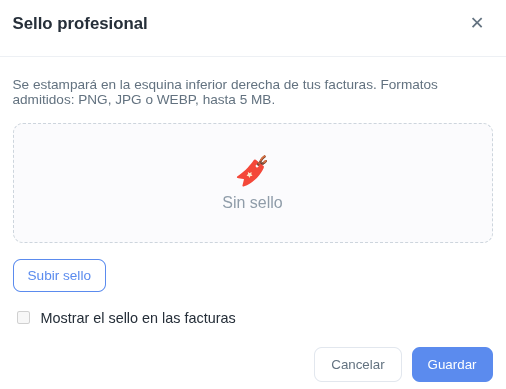
Press Professional stamp, then Upload stamp. It accepts PNG, JPG or WEBP, up to 5 MB. For example, you can upload an image with your name and your registration number. The stamp is placed in the bottom right corner of your invoices.
Tick 'Show the stamp on invoices' and save
Below the stamp is the Show the stamp on invoices checkbox. Tick it and press Save. Without that box ticked, the stamp stays saved in the system but doesn’t appear on any invoice.
Two steps people forget
Before you close the window, check two things: that the logo or stamp shows in the preview, and that you pressed Save. For the stamp, also check that Show the stamp on invoices is ticked.
Check the result
Generate or download a test invoice and check that the logo appears at the top and the stamp at the bottom right. If it doesn’t, check that you saved and that the stamp box is ticked.