The History is where you see all the invoices you’ve made: drafts, issued and corrected. From there you filter them, download the quarters for your accountant and check that the Spanish tax agency (AEAT) has accepted each invoice.
In short
Go to Invoices → History. At the top is the quarterly summary with PDF and Excel downloads, below it the filters and the list of invoices. And once you have Verifactu turned on, a column tells you whether the AEAT has accepted each invoice.
Open the History
On Invoices, press the History card (next to From Appointments and Manual Invoice). You’ll see all your issued invoices.
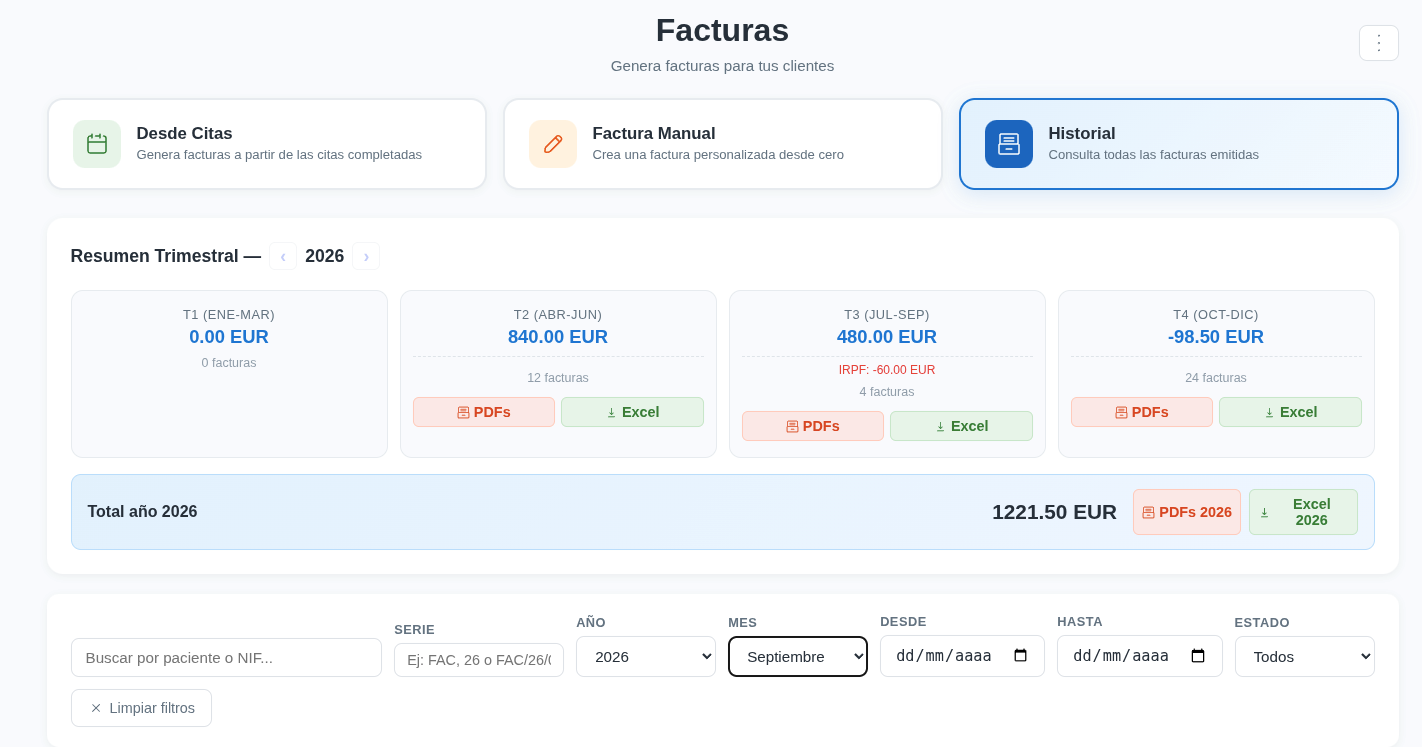
Download each quarter or the whole year
The Quarterly summary block shows the four quarters of the year, each with its total in euros, the number of invoices and, if any, the IRPF withheld. Use the arrows ‹ › to change year.
- Each quarter has PDFs and Excel buttons to download its issued invoices.
- Below, Year total downloads the whole year with PDFs 2026 and Excel 2026.
For your accountant
Download the quarter’s Excel for your books, and the PDFs if they ask for them by post or email.
Filter the invoices
Below the summary you have filters to find what you need:
- Search by patient or tax ID.
- Series: for example FAC/26 or 26. See the guide Number your invoices: sequences and series.
- Year and Month, or a range with From and To.
- Status: to see only drafts, only issued or only corrected invoices.
Press Clear filters to see everything again.
Read the list
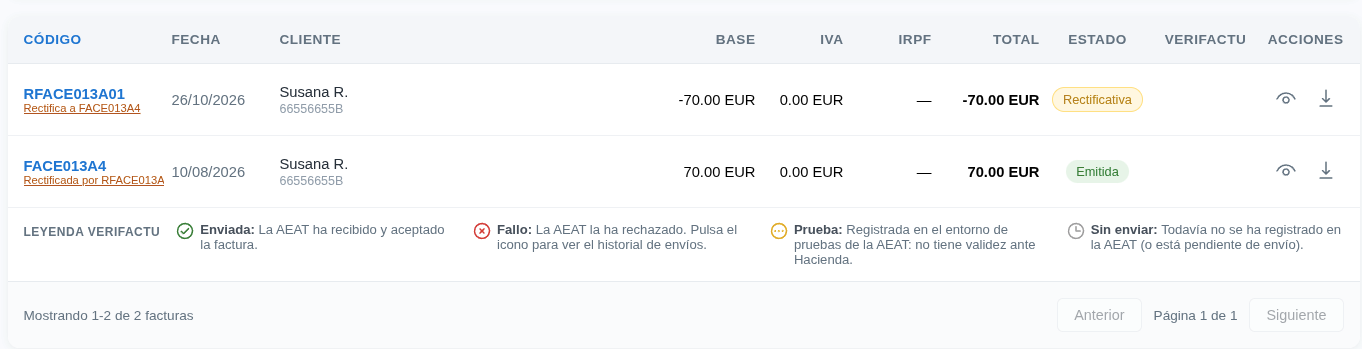
Each row shows the code, the date, the client with their tax ID, the base, the VAT, the IRPF, the total, the status, the Verifactu status and the actions on the right: view, download and, where applicable, correct.
- An issued invoice shows Corrected by and the number of its corrective invoice.
- A corrective invoice shows Corrects and the number of the original invoice.
Check the Verifactu status
Once you have Verifactu turned on, each invoice shows in its Verifactu column whether the AEAT has registered it. Below the table is a legend explaining each status:
- Sent: the AEAT has received and accepted the invoice.
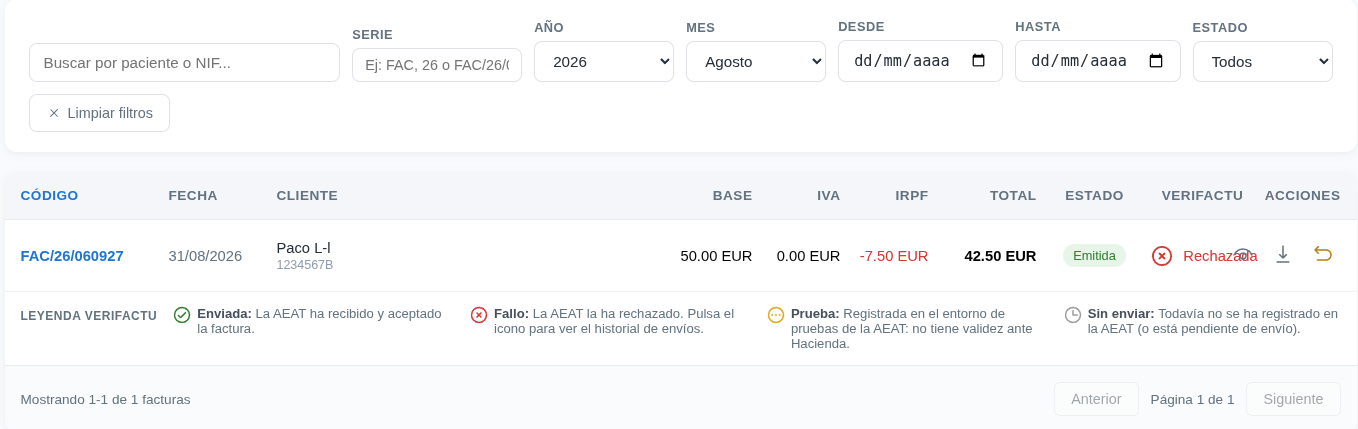
- Failed: the AEAT has rejected it. Press the icon to see the sending history.
- Test: registered in the AEAT’s test environment. It has no legal validity.
- Not sent: not yet registered with the AEAT, or waiting to be sent.
If an invoice is rejected
Press the red X on its row. You’ll see the reason the AEAT rejected the invoice and what you need to do to send it. Correct the item indicated and try again.
Where the status doesn't appear
Drafts haven’t been sent to the AEAT yet, so they have no Verifactu status. Only issued invoices have one.