If you have many appointments a month, there’s no need to invoice them one at a time. In Invoices → From Appointments you can select several appointments at once, generate their drafts in one go and then turn them into final invoices.
In short
Invoicing has two steps: first you generate drafts from the appointments you select (setting date, series, VAT, IRPF and, if applicable, the exemption note). Then you issue the final invoice, for several drafts at once or one by one with the tick on each row.
Choose the period and select the appointments
Go to Invoices and, under From Appointments, pick the year and month in the filters. Select the Pending appointments you want to invoice. Those already in Draft can’t be selected again.
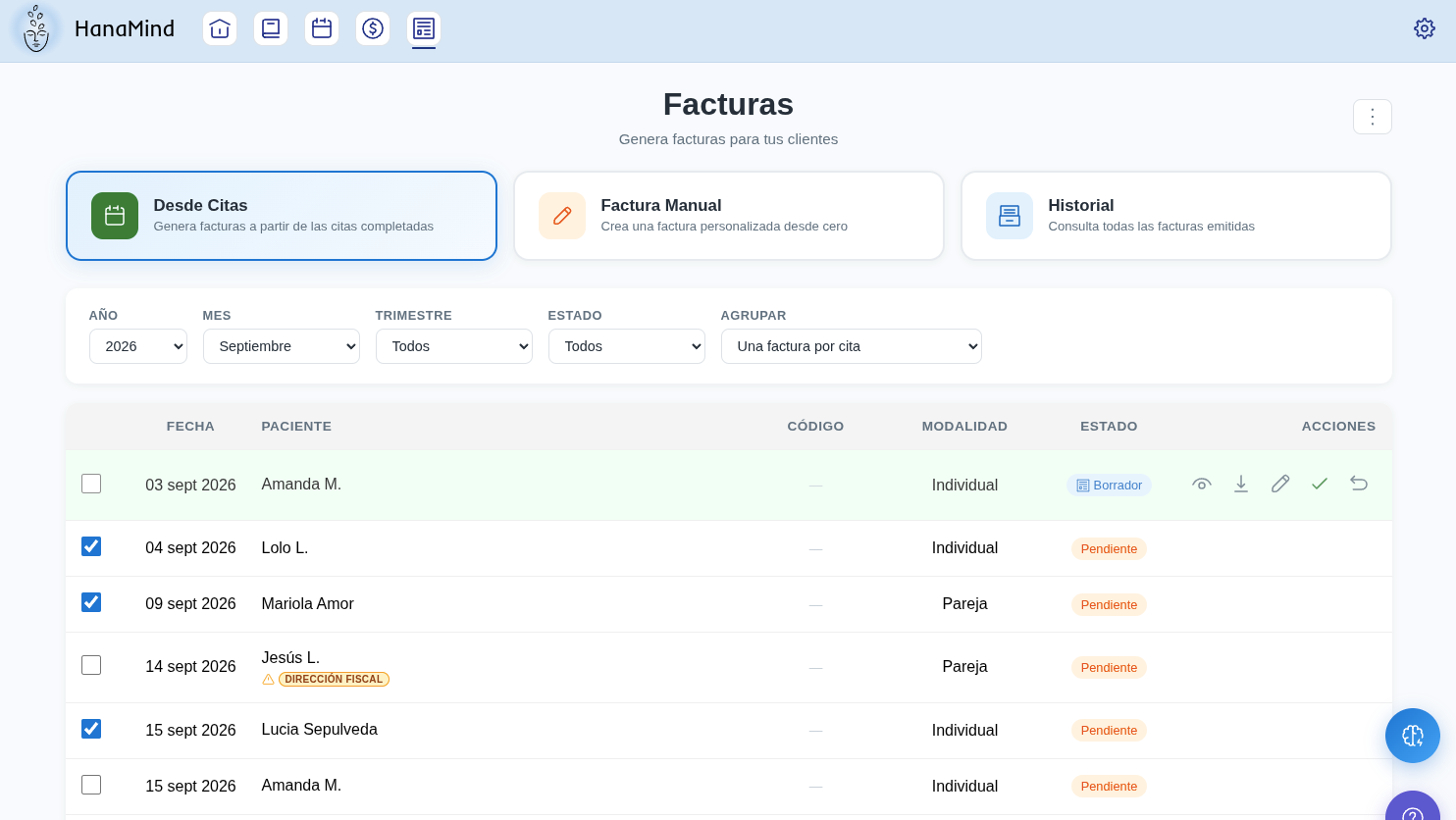
TAX ADDRESS warning
If a patient’s name shows the TAX ADDRESS warning, their record is missing details needed to invoice, such as tax ID or address. Press the warning: it takes you to the patient’s record so you can complete them. Until then, that appointment can’t be included in a batch.
Set the details for the drafts
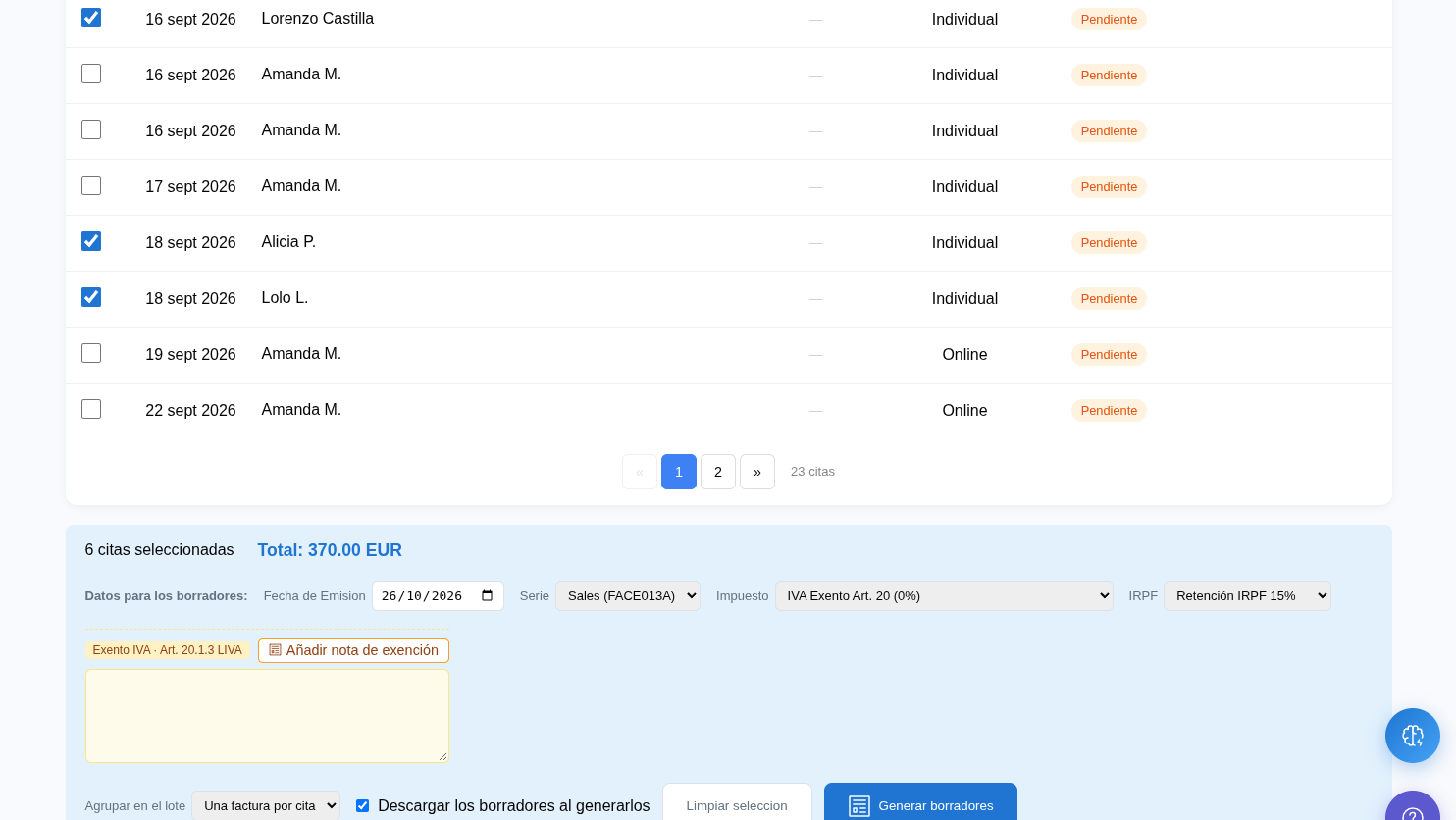
When you select appointments, a blue bar appears at the bottom with the number of appointments selected and the total. Under Data for the drafts enter:
- the issue date,
- the invoice series,
- the tax: the VAT that applies. If your VAT is 0 %, choose VAT exempt and press Add exemption note so the legal note appears on all the invoices,
- the IRPF: the withholding percentage you apply, if any.
Choose how to group and generate the drafts
Under Group in the batch choose how the invoices are created:
- One invoice per appointment (default): each appointment gets its own invoice.
- Per person: the appointments of the same patient go on one invoice.
If Download the drafts when generated is ticked, the draft PDFs download automatically. Press Generate drafts: the appointments move to Draft status. If you made a mistake in your selection, Clear selection empties it.
Issue the final invoice
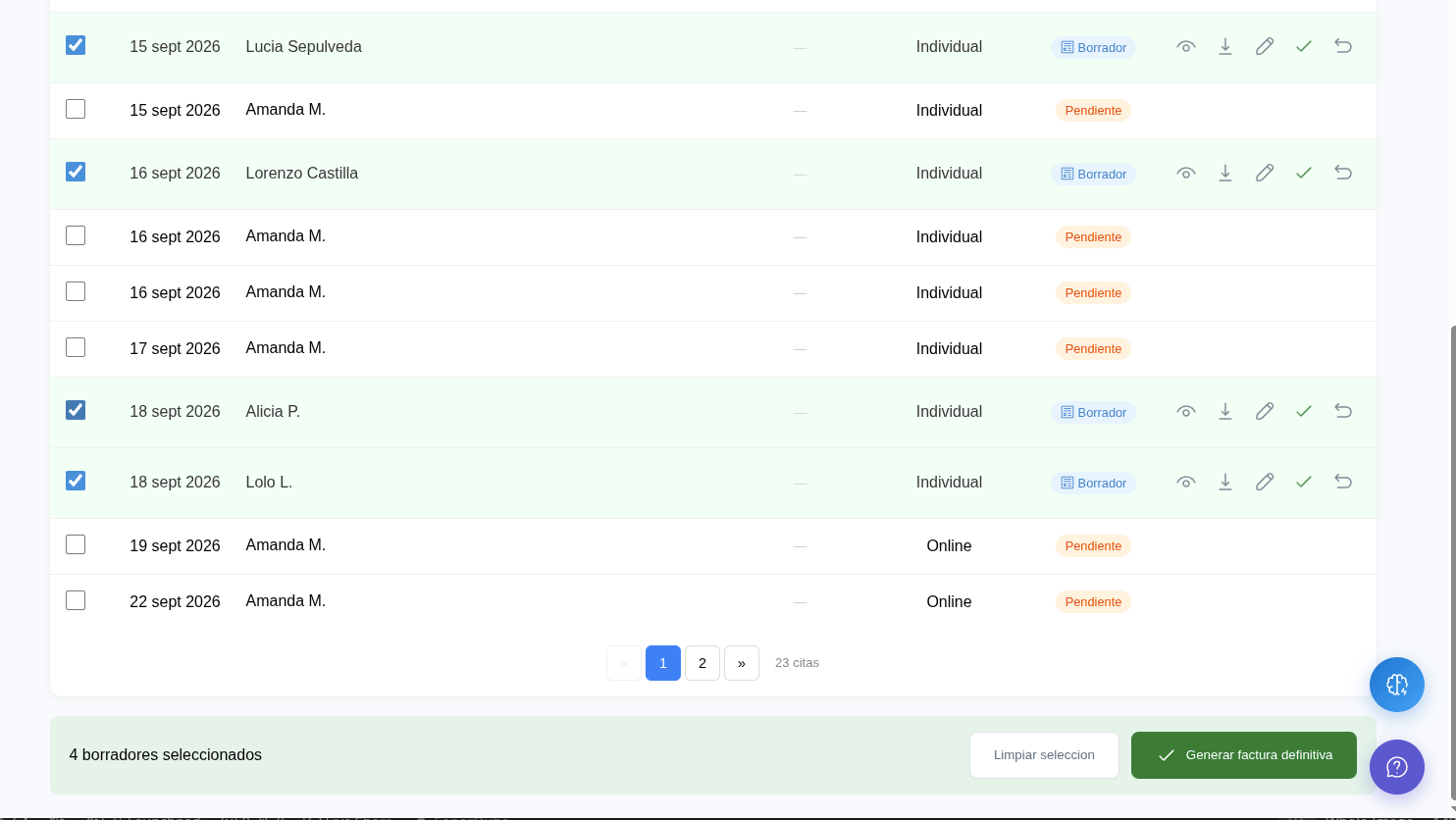
There are two ways to turn a draft into a final invoice:
- Several at once: tick the drafts and press Generate final invoice in the green bar (“N drafts selected”).
- One by one: on the draft’s row, press the tick ✓ to the right of the pencil. Only that draft is issued.
Invoice all of a patient's appointments
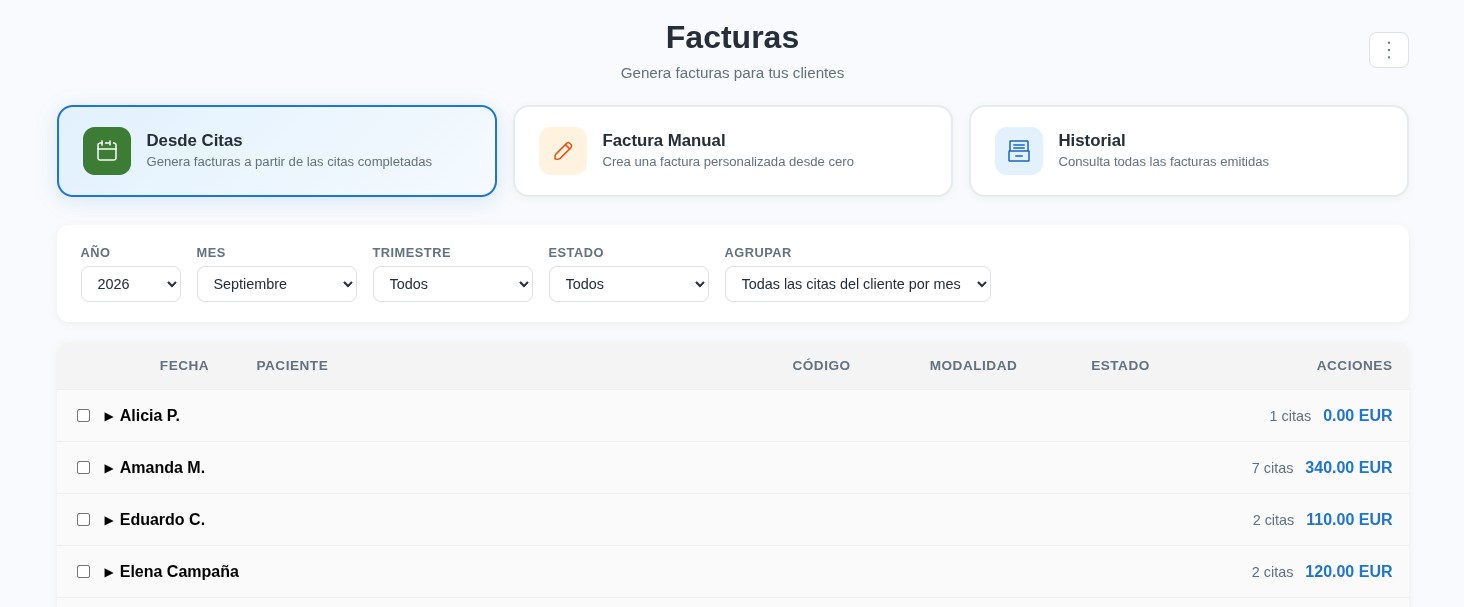
To get one invoice with all the appointments of the same person, change the Group filter to All the patient’s appointments by month. Each row is a patient with their number of appointments for the month and the total in euros.
- Tick the patient’s checkbox to select all their appointments for that month at once.
- Press the arrow ► to expand them and review what’s included.
- Generate the drafts and issue the final invoice as in steps 3 and 4.
Tip
Before batch invoicing, check that your patients’ records include tax ID, address and email. That way you avoid last-minute TAX ADDRESS warnings.