Your informed consent forms are the documents the patient signs before starting. You can customise them: change the text, choose your logo and decide which details you ask for.
In short
Go to the Admin Panel, in the Patients area, and open Informed consent. Choose the type (individual, couple, family or minor), edit the text and the logo under Document texts, and then decide which details you ask for under Details requested.
Open Informed consent
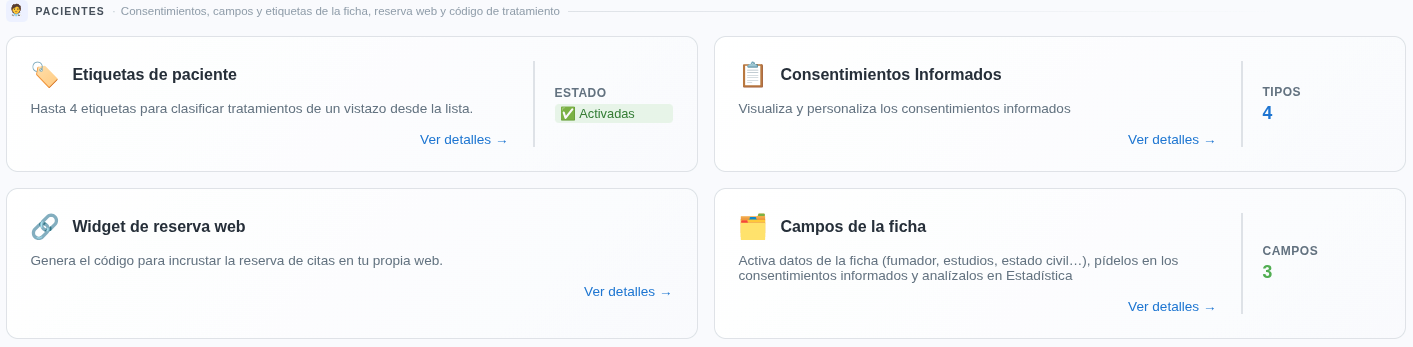
Go to the Admin Panel and open the Patients area. There are several blocks there. Click Informed consent.
Choose the consent you want to edit
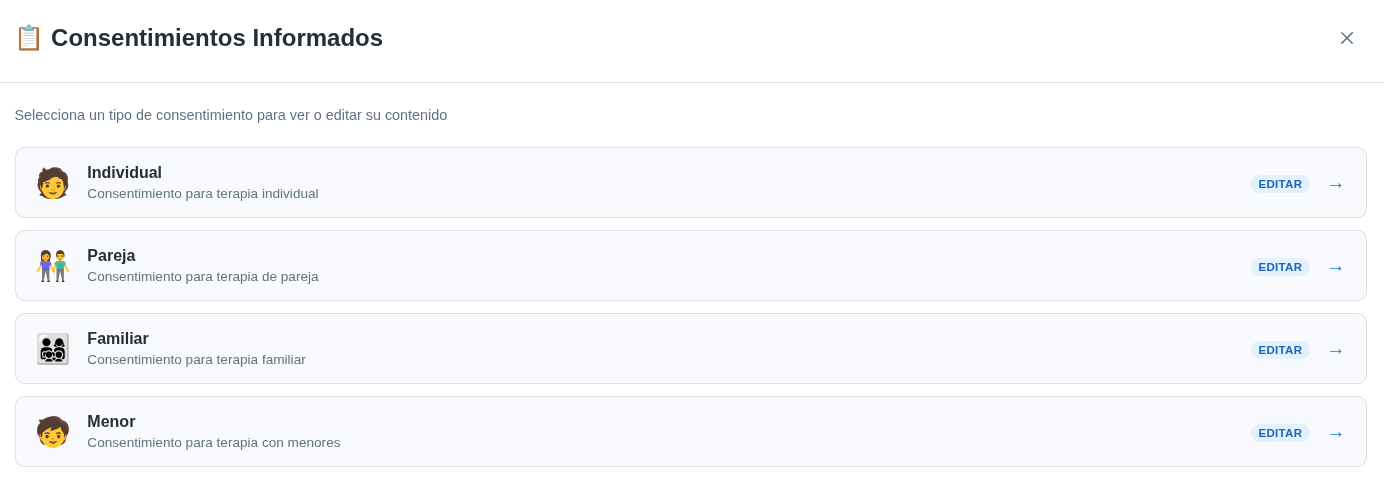
You’ll see four types: individual, couple, family and minor. Click Edit on the one you want to change.
Each one is edited separately: if you change the couple form, the individual one doesn’t change, and the other way round.
Edit the document texts and the logo
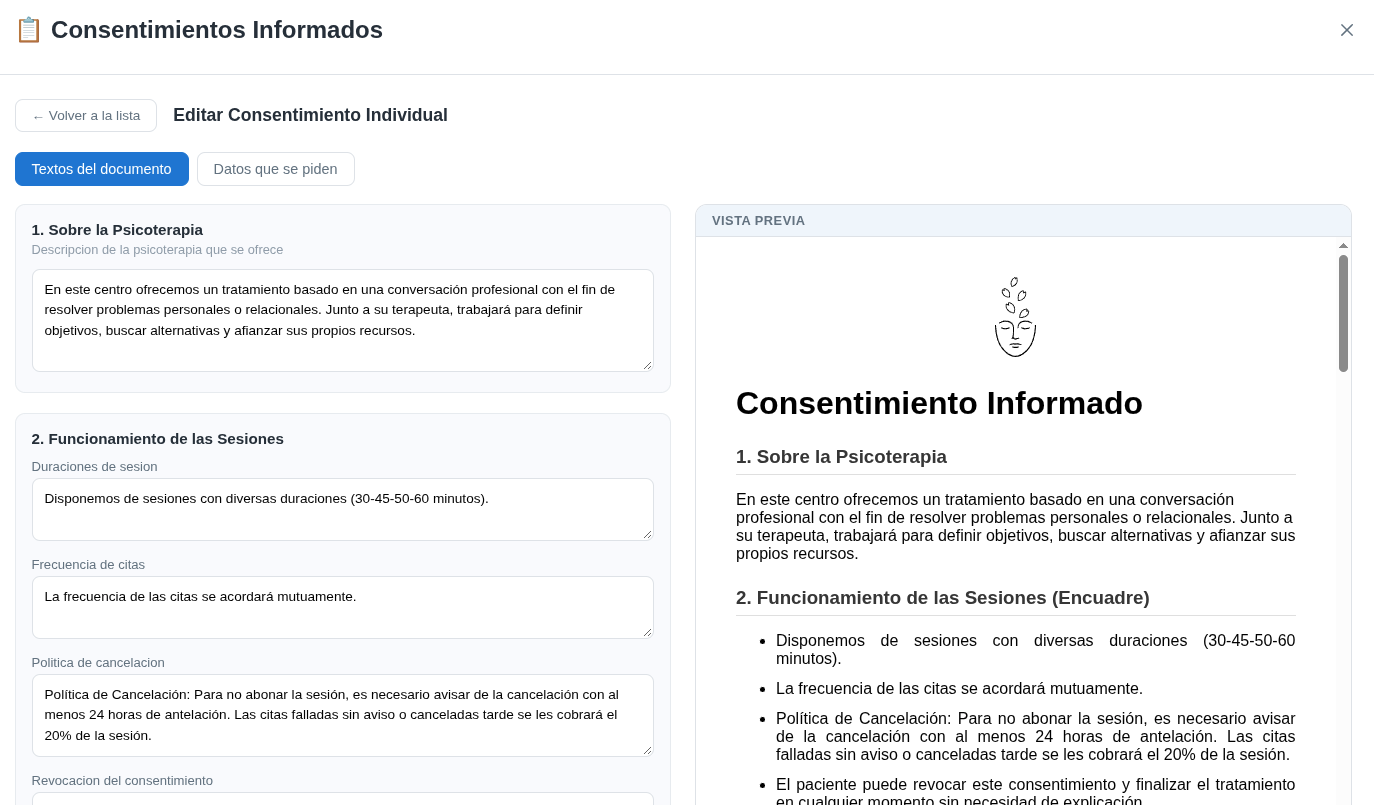
On the Document texts tab you change the content of the consent. On the left you have each section to write, and on the right the preview, so you can see how the patient receives it.
At the end of the texts is the header logo. Choose between Hanamind logo, No logo or My logo. The logo you choose is used in all four types of consent. For your own logo, PNG, JPG, SVG or WEBP files up to 1 MB are accepted.
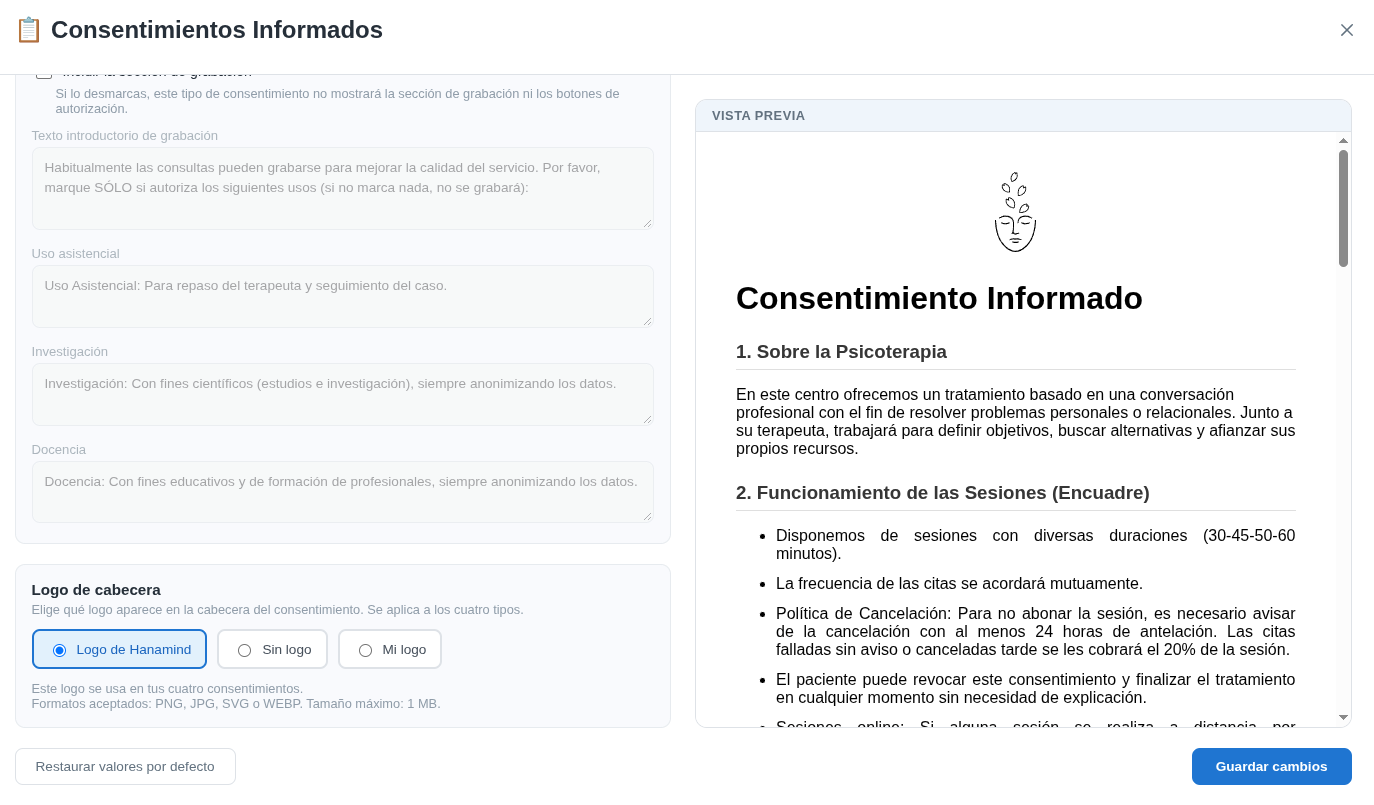
When you’re done, click Save changes.
Decide which details it asks for
Go to the Details requested tab. The base consent always asks for first name, surname, ID number, address and signature.
You can also ask for up to 3 more details. These can be the date of birth and the sex, which appear under Record data, or the fields you’ve created, which appear under Your record fields. Each detail has a box to request it and another to mark it as required.
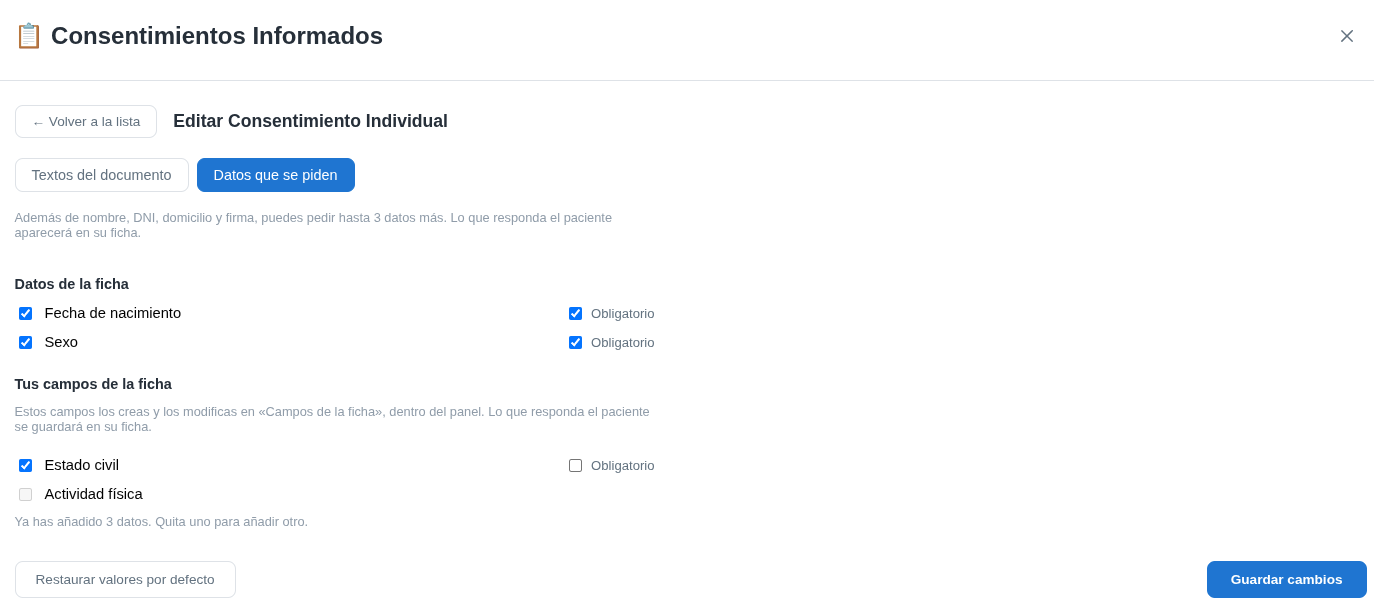
You create and change your own fields in the panel, under Record fields. We explain it in another guide.
Each change affects one consent only
What you change in one type of consent doesn’t affect the others. If you customise the individual one, the couple, family and minor ones stay the same.