The web booking widget is the form you put on your website so your patients can book appointments on their own. You set it up once in the Admin Panel, and after that each patient books according to what you’ve assigned them: a single session or, if they have one, their pack.
In short
In the Admin Panel, open Web booking widget, turn on On, enter your domain, choose the appointment type and the modalities with their price, decide whether it’s charged when booking and click Save. Finally, copy the code and paste it into your website.
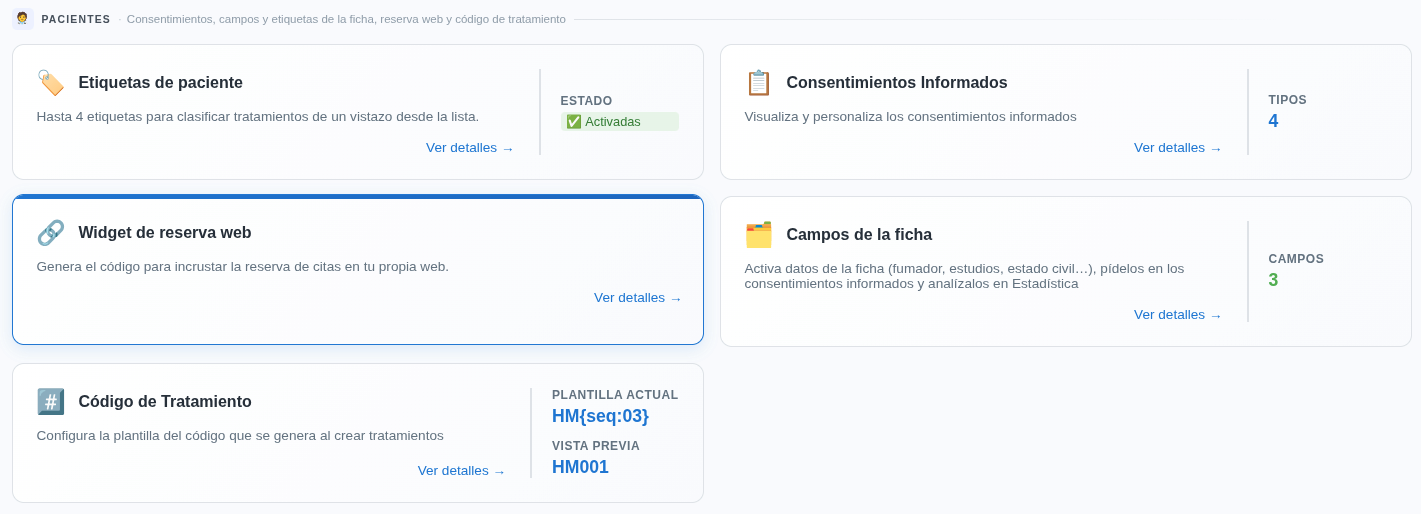
Open 'Web booking widget'
Scroll down the Admin Panel to the Patients section. There you’ll find the Web booking widget card: click it.
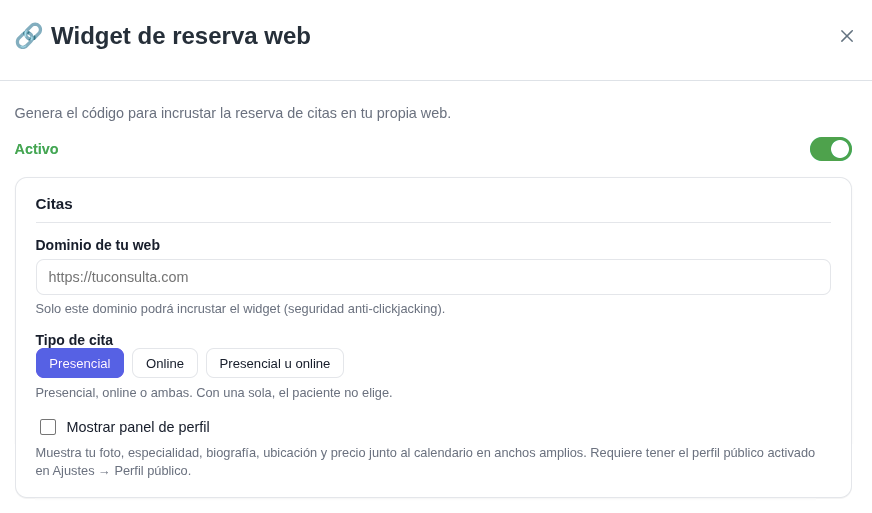
Turn it on, enter your domain and choose the appointment type
Turn on On and enter the domain of your website. Only that domain will be able to embed the widget.
Under Appointment type, choose In person, Online or In person or online. If you only offer one, the patient doesn’t have to choose.
If you want your patients to find you on hanamind.es too, turn on your public profile in Settings → Public profile. Show profile panel shows your photo, specialty, biography, location and price next to the calendar, and it requires that public profile.
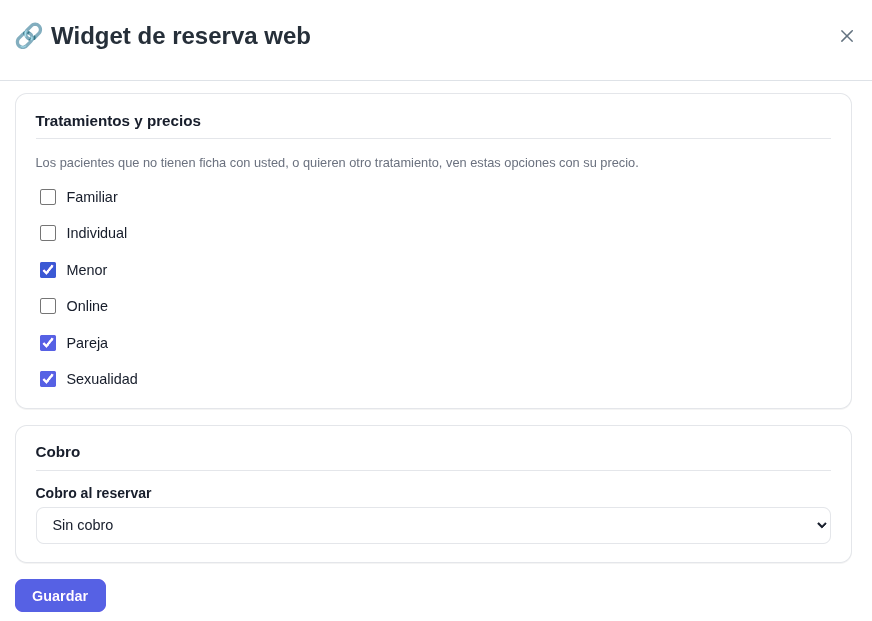
Choose the modalities and their prices
Under Treatments and prices, tick the modalities you want patients to see. Each one shows the price you set in your catalogue.
Patients who don’t have a record with you, or who want another treatment, see these options with their price.
Decide whether it's charged when booking
Under Charge when booking, choose whether the patient pays when booking or not. With No charge, they book without paying. If you want them to pay everything before they book, choose the full charge option.
To charge when booking you need Stripe turned on. Without Stripe you can’t charge from the widget.
Save before you leave
Click Save. If you don’t save, nothing is saved of what you’ve set up: not the modalities, not the charge, not the appointment type.
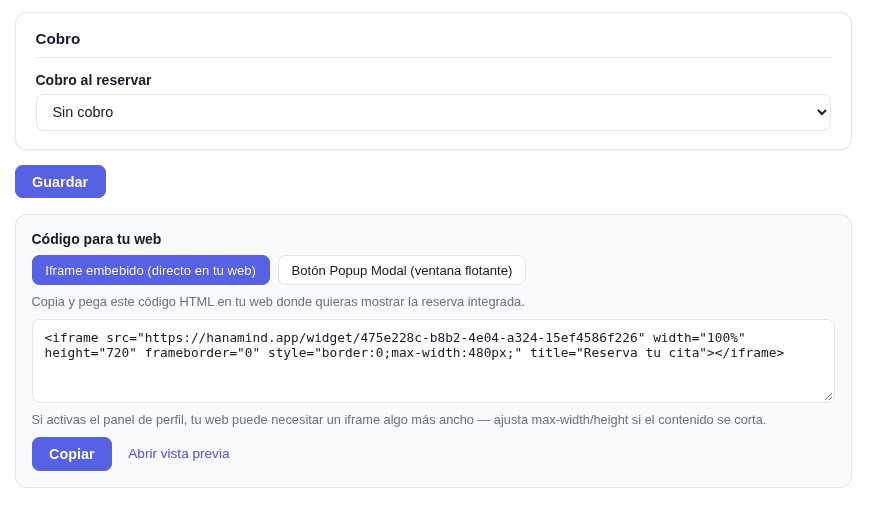
Copy the code and paste it into your website
Under Code for your website, choose the format: Embedded iframe (shown directly on your page) or Popup Modal button (opens in a floating window). Click Copy and paste the code where you want it to appear, for example on your contact page. With Open preview you can check how it looks first.
If you turn on the profile panel, your website may need a wider iframe: adjust the size if the content is cut off.
This is how your patients book
When a patient visits your website and books, they see the modalities you ticked with their price. If they have no pack assigned, they book a single session at your catalogue price. If you’ve assigned them a pack, the appointment is covered by it, and each appointment uses up one session until the pack runs out.
As soon as they book, the appointment is added to your calendar with the patient’s details.
You decide who uses a pack
The widget doesn’t give packs on its own. Only the patient you’ve assigned a pack to can use it, from the record or from the calendar. If you don’t want a patient to use packs, simply don’t assign one.
You and your patient each receive an email
When the patient books this way, both you and your patient receive an email: yours tells you an appointment has been booked, and theirs tells them their appointment has been booked successfully.
Careful with unfinished payments
If the patient starts paying with Stripe and doesn’t complete it (they leave the page or leave it open without finishing), Stripe holds that slot for 30 minutes in case they come back to finish booking. During those 30 minutes the slot doesn’t appear as available in the calendar, even though the payment wasn’t completed successfully.