Your calendar is where you create all your appointments. The best part: you don't need the patient to be registered to book them. You can create them on the fly or search for one you already have.
In short
To book, just click on a slot in your calendar and choose whether the patient is new or already exists. That's it.
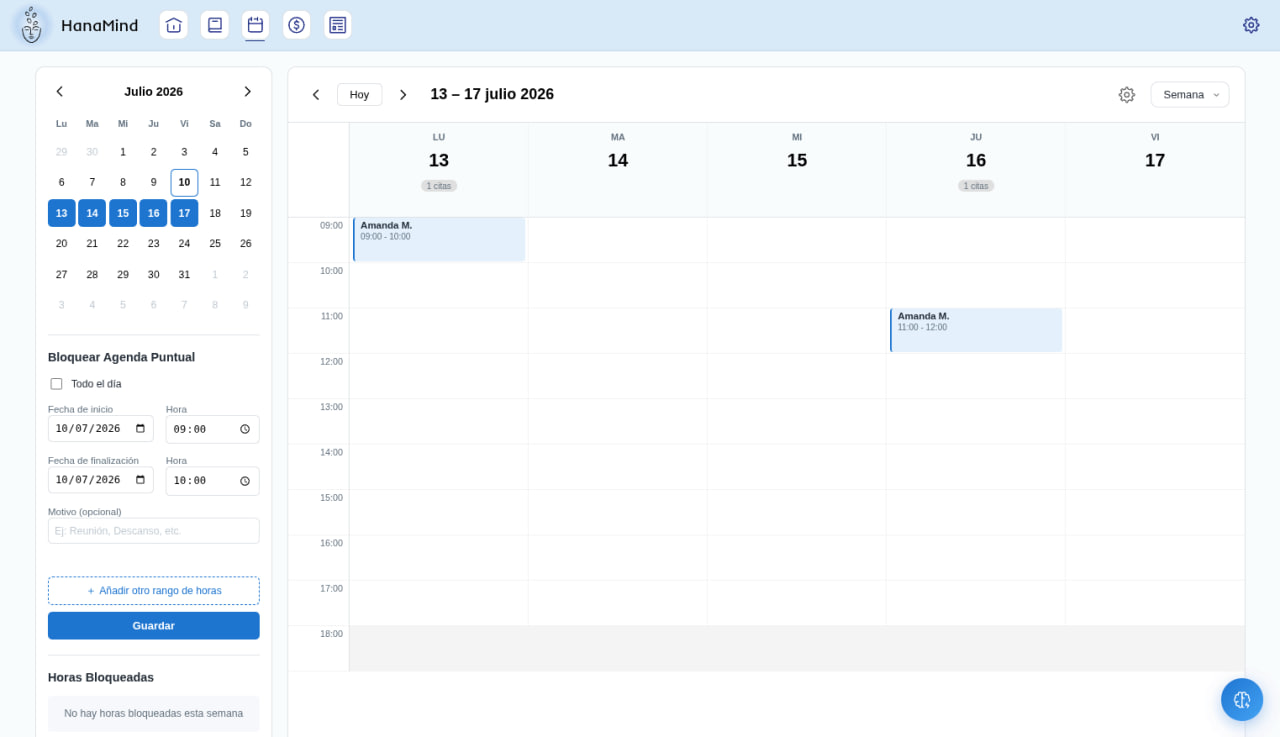
Click on a slot in your calendar
Go to the Calendar section and click directly on the day and time where you want the appointment. No special button needed: click the empty slot and the form opens.
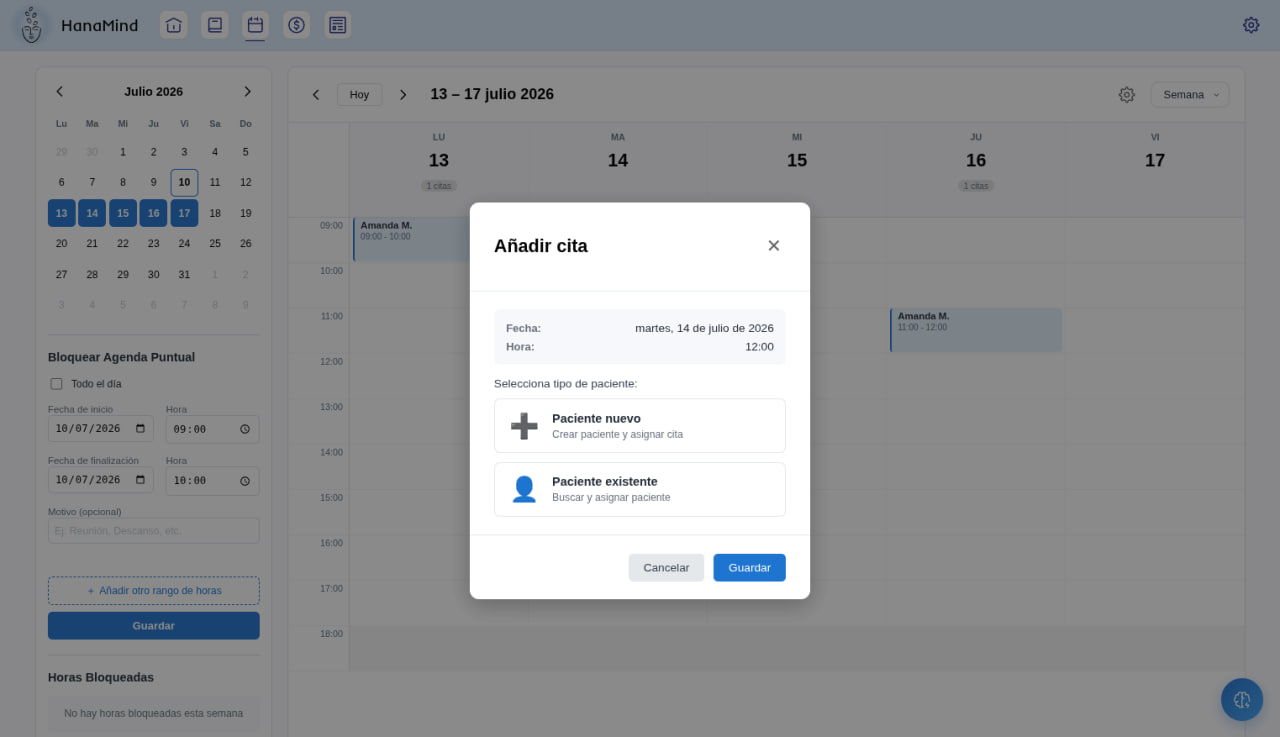
Choose the type of patient
The Add appointment window opens with the date and time already filled in. Choose between:
- New patient: creates the patient and assigns the appointment at the same time.
- Existing patient: searches for one you already have and assigns the appointment.
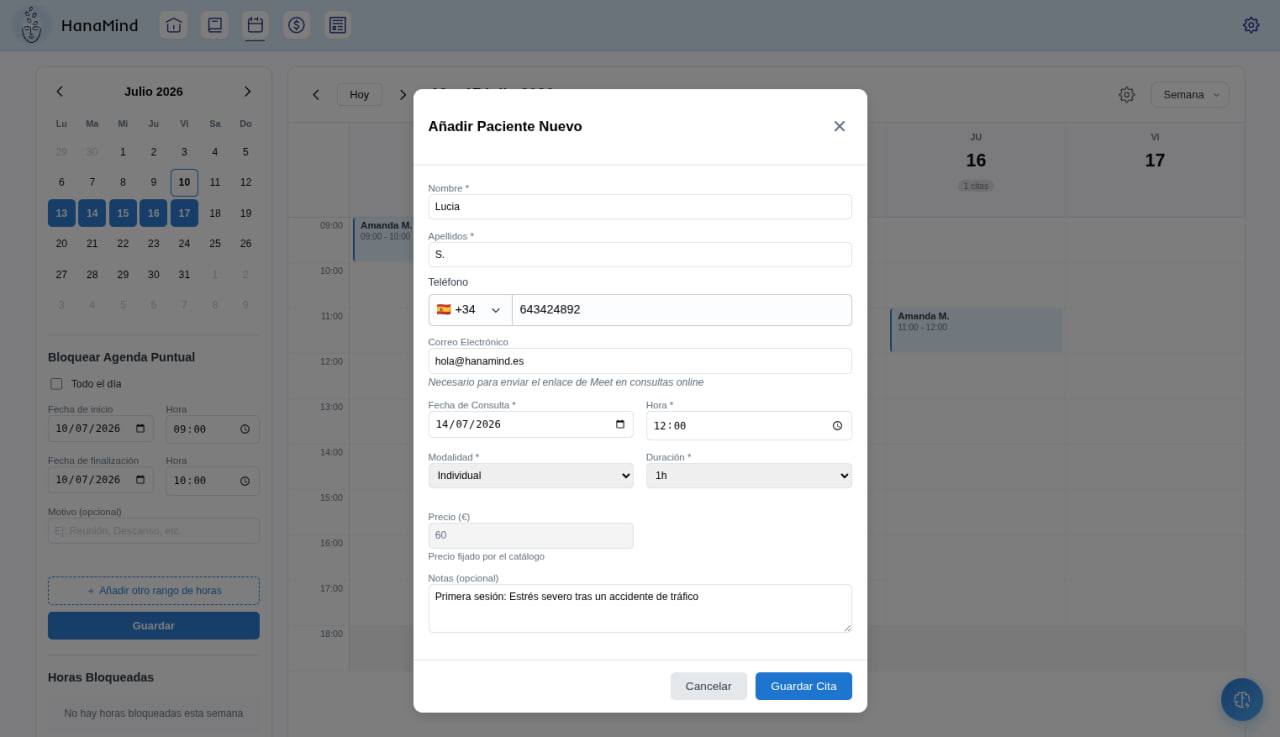
If the patient is new, fill in their details
Complete name, surname, phone and email. The email is needed to send them the video call link if the session is online. Then choose the session type (Individual, Online…) and the duration (1 h, 45 min…). The price fills in automatically based on your catalog, and the note is optional. Click Save appointment.
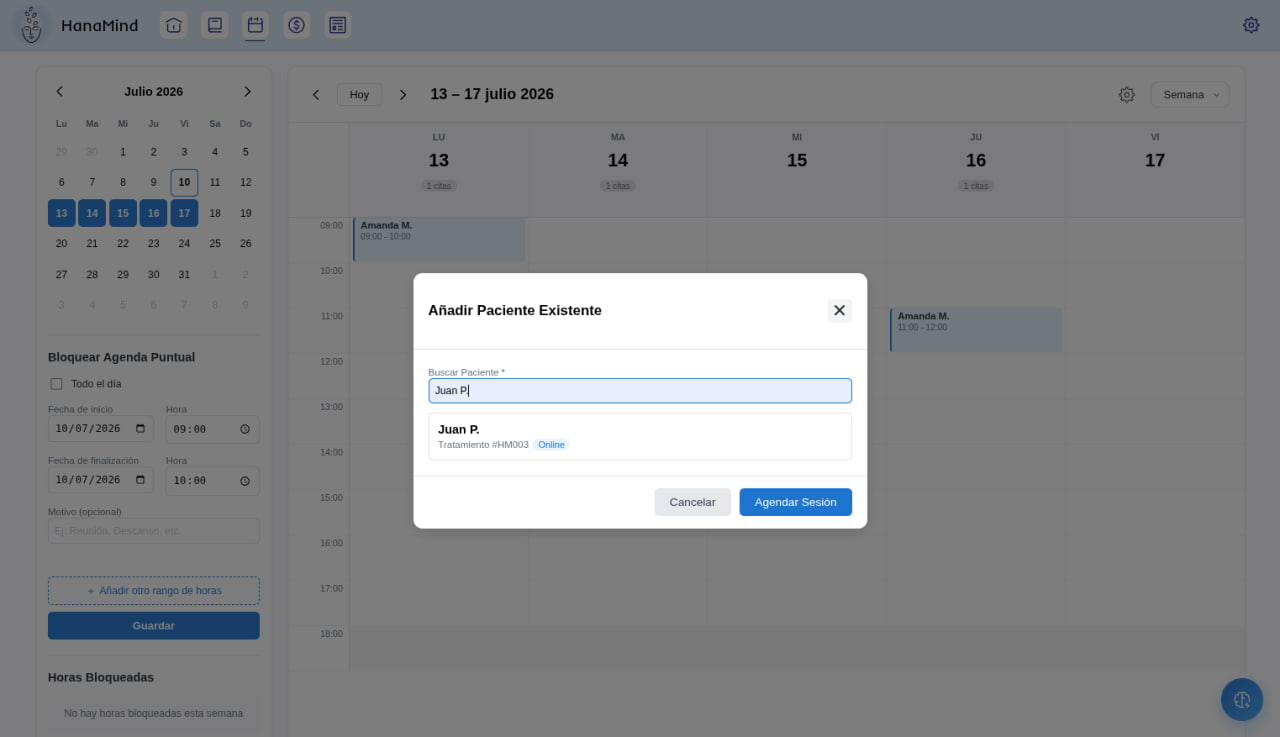
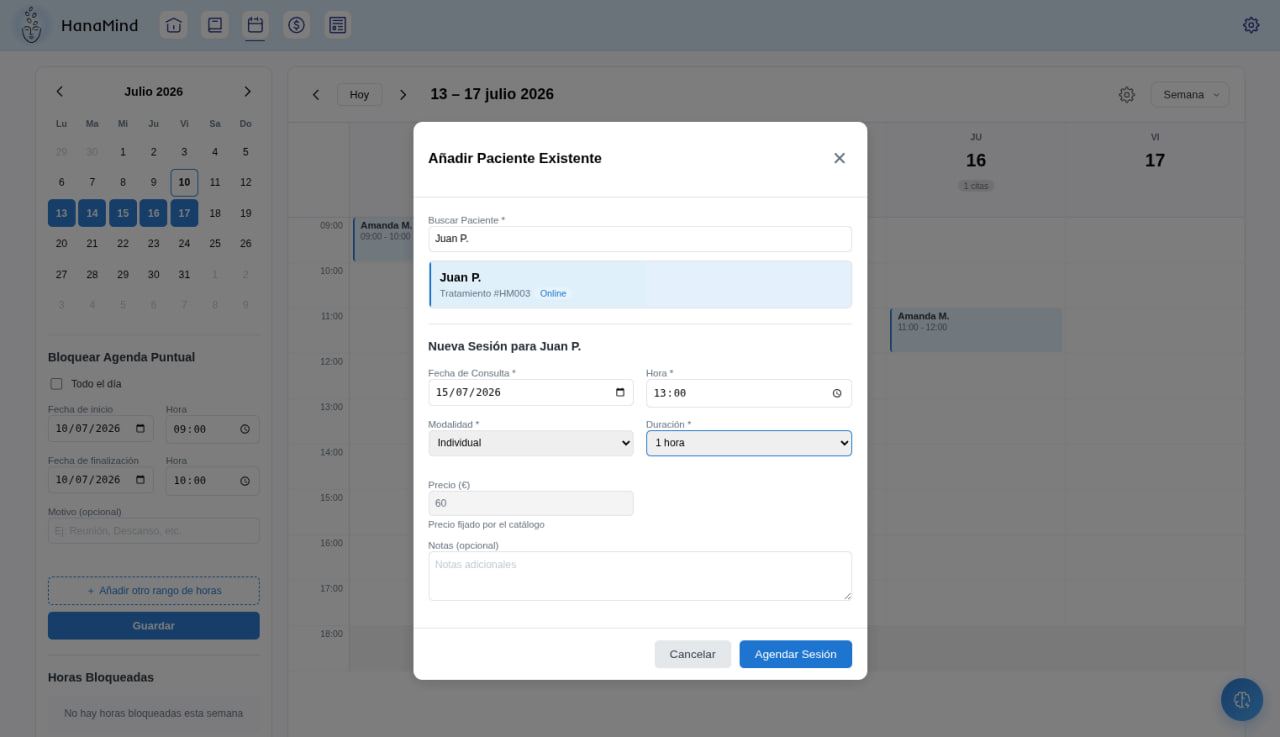
If the patient already exists, search for them
Type part of their name or surname (it doesn't have to be exact) and select them from the list. The New session block will open: choose date, time, session type and duration, and click Book session.
Tip: duplicate an appointment by copying and pasting
Booking a very similar appointment again? You can copy and paste one you already have:
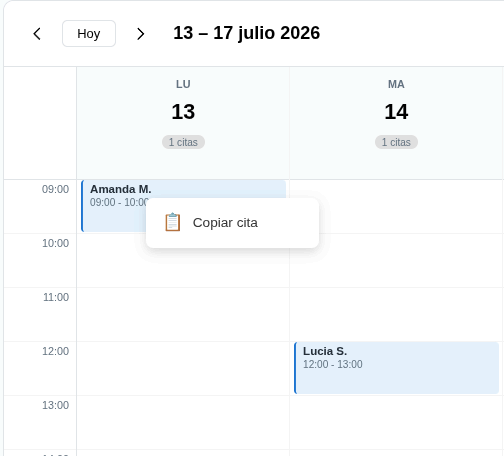
- Right-click on the appointment you want to copy. The Copy appointment option will appear.
- To paste it, press Ctrl + V or right-click → Paste on the slot where you want it.
It pastes that person's appointment with the same time and the same session type, but on the day you choose.
And that's it! You've booked your appointment. When you want to join the video call, reschedule it, generate the consent form or charge for it, head to the Manage an existing appointment guide.